---
title: An Introduction To OpenSpaces
description: Learn how to enable, configure, integrate, and embed OpenSpaces with your Clearooms account. Start earning revenue from unused rooms and desks with detailed analytics and full control over bookings.
---
[Skip to content](https://knowledgebase.clearooms.com/an-introduction-to-openspaces#main-content)

Open main navigation
Close main navigation
- [Contact us](https://2feg9n.share-eu1.hsforms.com/2LEUbrOfJTIe01qcEQusU5w)
[Contact us](https://2feg9n.share-eu1.hsforms.com/2LEUbrOfJTIe01qcEQusU5w)
How can we help you?
- There are no suggestions because the search field is empty.
1. [Knowledge Base](https://knowledgebase.clearooms.com/?hsLang=en-gb)
2. [OpenSpaces](https://knowledgebase.clearooms.com/openspaces?hsLang=en-gb)
# An Introduction To OpenSpaces
## Turn your empty rooms and desks into a revenue stream.
Every office has a meeting room that sits empty more often than it should, or a bank of desks that gather dust on quiet days. OpenSpaces flips that on its head. It lets people outside your organisation discover, book and pay for your spare rooms and desks, with payments processed through Stripe or Paypal just like the rest of Clearooms.
Set your own pricing, hourly rates, day rates, day passes, even membership packages that give external members ongoing access on the terms you choose.
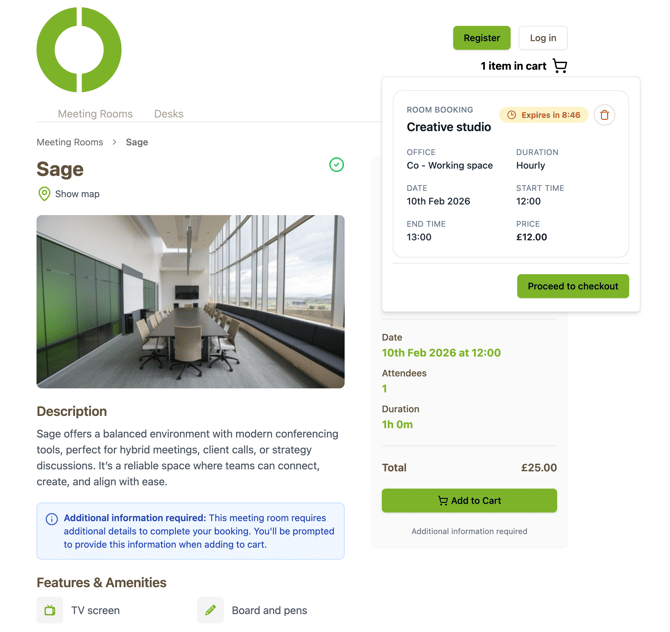
Once you are configured, you drop a feature-rich widget onto your website. It carries photos, the resources available in each space, the location, live availability, a registration form and the booking flow itself, all styled to fit your brand. Customers complete the booking and pay without ever leaving your site.
Behind the scenes, detailed analytics show you which spaces are performing, which pricing tiers are converting, and where you might tweak things to earn more. The whole setup takes a few business days from request to live, and we are with you every step of the way. If you have unused capacity, this is the most pain-free way we have ever found to monetise it.
### **The Journey**
- **ENABLE:** Enable OpenSpaces from within your Clearooms dashboard.
- **CONFIGURE:** Select & configure the rooms and spaces you would like to be available.
- **INTEGRATE:** Set up your payment gateway to accept online payments.
- **EMBED:** Embed the OpenSpaces code snippet into your website.
- **EARN & REVIEW:** Start earning revenue from your unused rooms.
### **Step 1: Enable**
From within your existing Clearooms set up, you simply request that OpenSpaces becomes available and we configure it on our servers for you.
Once active, we review and test the setup behind the scenes and let you
know when it’s up and running. This only takes a few business days, and we keep you apprised of where you’re at.
### **Step 2: Configure**
As soon as you’re up and running, you can then configure which rooms you would like to offer. As with the Clearooms UI, it’s easy to use and to configure the fine-grained detail and room options available. This is adjustable at any point and can be revisited as often as you need. And of course, we’re on hand to help you at any time.
You can set how you would like your spaces to be accessed and used to best suit you and your organisation.
**Customisation Features: **
- Customisable pricing structures to manage charges for desks & rooms.
- Day/hour rates.
- Day passes.
- Membership packages to set hours/days access.
### **Step 3: Integrate**
Once you’ve set up the rules and preferences for the rooms and spaces to become available, we need to configure your payment gateway.
Like Clearooms, we use Stripe or PayPal to process payments, and likely enough, your existing integration will work seamlessly. Either way, this is tested, and once proven, you can go live.
.jpg?width=670&height=132&name=Untitled%20design%20(1).jpg)
### **Step 4: Embed**
When everything is tested and working, you then simply embed the OpenSpaces widget into your website.
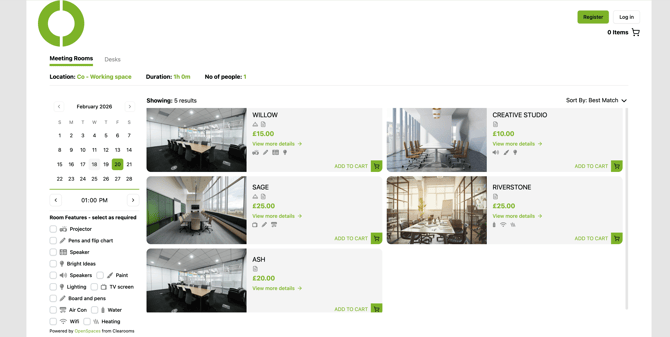
Our widget is feature-rich, giving you control of how much information you show, as well as ensuring it matches the overall look of your site and brand.
**Widget Features:**
- Photos of the space (room/desk).
- Resources available in rooms/desk.
- Location.
- Availability.
- Registration form.
- Booking form/UI.
### **Step 5: Earn & Review**
Once up and running, you are in full control of how your spaces are presented and used by those outside your organisation.
Along with detailed analytics and insight, you’ll be able to see which spaces are performing the best, so you can review configuration, pricing and marketing initiatives.
As with Clearooms - you’re in complete control.
- [FAQs](https://knowledgebase.clearooms.com/faqs?hsLang=en-gb#main-content)
- [General](https://knowledgebase.clearooms.com/faqs?hsLang=en-gb#general)
- [Hosting & Security](https://knowledgebase.clearooms.com/faqs?hsLang=en-gb#hosting-security)
- [Desk Booking](https://knowledgebase.clearooms.com/faqs?hsLang=en-gb#desk-booking)
- [Meeting Rooms](https://knowledgebase.clearooms.com/faqs?hsLang=en-gb#meeting-rooms)
- [Getting started](https://knowledgebase.clearooms.com/getting-started?hsLang=en-gb)
- [General](https://knowledgebase.clearooms.com/general?hsLang=en-gb#main-content)
- [Troubleshooting](https://knowledgebase.clearooms.com/general?hsLang=en-gb#troubleshooting)
- [Desks](https://knowledgebase.clearooms.com/general?hsLang=en-gb#desks)
- [Meeting Rooms](https://knowledgebase.clearooms.com/general?hsLang=en-gb#meeting-rooms)
- [Admin Settings](https://knowledgebase.clearooms.com/general?hsLang=en-gb#admin-settings)
- [Planning](https://knowledgebase.clearooms.com/general?hsLang=en-gb#planning)
- [Reports](https://knowledgebase.clearooms.com/reports?hsLang=en-gb)
- [Settings](https://knowledgebase.clearooms.com/settings?hsLang=en-gb#main-content)
- [Users](https://knowledgebase.clearooms.com/settings?hsLang=en-gb#users)
- [Desk Settings](https://knowledgebase.clearooms.com/settings?hsLang=en-gb#desk-settings)
- [Meeting Room Settings](https://knowledgebase.clearooms.com/settings?hsLang=en-gb#meeting-room-settings)
- [Room Display App Settings](https://knowledgebase.clearooms.com/settings?hsLang=en-gb#room-display-app-settings)
- [Services](https://knowledgebase.clearooms.com/settings?hsLang=en-gb#services)
- [Account Settings](https://knowledgebase.clearooms.com/settings?hsLang=en-gb#account-settings)
- [Event Management](https://knowledgebase.clearooms.com/settings?hsLang=en-gb#event-management)
- [Visitor Management](https://knowledgebase.clearooms.com/settings?hsLang=en-gb#visitor-management)
- [Custom Fields](https://knowledgebase.clearooms.com/settings?hsLang=en-gb#custom-fields)
- [Multi-Factor authentication](https://knowledgebase.clearooms.com/settings?hsLang=en-gb#multi-factor-authentication)
- [Manager Settings](https://knowledgebase.clearooms.com/settings?hsLang=en-gb#manager-settings)
- [Billing](https://knowledgebase.clearooms.com/settings?hsLang=en-gb#billing)
- [Status](https://knowledgebase.clearooms.com/settings?hsLang=en-gb#status)
- [Support](https://knowledgebase.clearooms.com/support?hsLang=en-gb)
- [Security](https://knowledgebase.clearooms.com/security?hsLang=en-gb#main-content)
- [SSO, SCIM Apps & Integrations](https://knowledgebase.clearooms.com/security?hsLang=en-gb#sso-scim-apps-integrations)
- [Privacy](https://knowledgebase.clearooms.com/security?hsLang=en-gb#privacy)
- [Desk Booking App](https://knowledgebase.clearooms.com/desk-booking-app?hsLang=en-gb)
- [Room Display App](https://knowledgebase.clearooms.com/room-display-app?hsLang=en-gb)
- [Video Tutorials](https://knowledgebase.clearooms.com/video-tutorials?hsLang=en-gb#main-content)
- [Getting Started With Clearooms](https://knowledgebase.clearooms.com/video-tutorials?hsLang=en-gb#getting-started-with-clearooms)
- [Clearooms Desk Booking App: Getting Started With Clearooms](https://knowledgebase.clearooms.com/video-tutorials?hsLang=en-gb#clearooms-desk-booking-app-getting-started-with-clearooms)
- [Desks](https://knowledgebase.clearooms.com/video-tutorials?hsLang=en-gb#desks)
- [Meeting Rooms](https://knowledgebase.clearooms.com/video-tutorials?hsLang=en-gb#meeting-rooms)
- [Smart Booking And Favourites](https://knowledgebase.clearooms.com/video-tutorials?hsLang=en-gb#smart-booking-and-favourites)
- [Clearooms Room Display App](https://knowledgebase.clearooms.com/video-tutorials?hsLang=en-gb#clearooms-room-display-app)
- [Apps And Integrations](https://knowledgebase.clearooms.com/video-tutorials?hsLang=en-gb#apps-and-integrations)
- [Users](https://knowledgebase.clearooms.com/video-tutorials?hsLang=en-gb#users)
- [Office Plan](https://knowledgebase.clearooms.com/video-tutorials?hsLang=en-gb#office-plan)
- [Desk Neighbourhoods & Meeting Zones](https://knowledgebase.clearooms.com/video-tutorials?hsLang=en-gb#desk-neighbourhoods-meeting-zones)
- [My Bookings](https://knowledgebase.clearooms.com/video-tutorials?hsLang=en-gb#my-bookings)
- [Services](https://knowledgebase.clearooms.com/video-tutorials?hsLang=en-gb#services)
- [Kiosk](https://knowledgebase.clearooms.com/video-tutorials?hsLang=en-gb#kiosk)
- [Custom Fields](https://knowledgebase.clearooms.com/video-tutorials?hsLang=en-gb#custom-fields)
- [Who's In](https://knowledgebase.clearooms.com/video-tutorials?hsLang=en-gb#whos-in)
- [Status](https://knowledgebase.clearooms.com/video-tutorials?hsLang=en-gb#status)
- [Help Centre](https://knowledgebase.clearooms.com/video-tutorials?hsLang=en-gb#help-centre)
- [OpenSpaces](https://knowledgebase.clearooms.com/video-tutorials?hsLang=en-gb#openspaces)
- [Parking Spaces](https://knowledgebase.clearooms.com/video-tutorials?hsLang=en-gb#parking-spaces)
- [OpenSpaces](https://knowledgebase.clearooms.com/openspaces?hsLang=en-gb)
- [Parking Spaces](https://knowledgebase.clearooms.com/parking-spaces?hsLang=en-gb#main-content)
- [Parking Misuse Reporting](https://knowledgebase.clearooms.com/parking-spaces?hsLang=en-gb#parking-misuse-reporting)
[](http://clearooms.com)
[mailto:support@email.com](mailto:support@email.com)
Copyright © 2025, clearooms.com
```json
{
"@context" : "https://schema.org",
"@type" : "VideoObject",
"caption" : {
"@type" : "MediaObject",
"contentUrl" : "https://knowledgebase.clearooms.com/media-transcripts/374206222580/en.vtt",
"inLanguage" : "en",
"name" : "en Captions"
},
"contentUrl" : "https://146800859.fs1.hubspotusercontent-eu1.net/hubfs/146800859/video_assets/374206222580/inherited/web_optimized.mp4",
"dateModified" : "2026-03-04T10:59:31.246Z",
"duration" : "PT2M39S",
"height" : 1080,
"name" : "Introducting OpenSpaces",
"thumbnailUrl" : "https://146800859.fs1.hubspotusercontent-eu1.net/hubfs/146800859/Introducting%20OpenSpaces.mp4/medium.jpg",
"uploadDate" : "2026-03-04T10:59:06.126Z",
"width" : 1920
}
```