---
title: Global Search
description: Find people, desks and meetings in seconds. Press Ctrl+K to open Global Search in Clearooms from the Offices or Meeting Rooms page.
---
[Skip to content](https://knowledgebase.clearooms.com/global-search#main-content)

Open main navigation
Close main navigation
- [Contact us](https://2feg9n.share-eu1.hsforms.com/2LEUbrOfJTIe01qcEQusU5w)
[Contact us](https://2feg9n.share-eu1.hsforms.com/2LEUbrOfJTIe01qcEQusU5w)
How can we help you?
- There are no suggestions because the search field is empty.
1. [Knowledge Base](https://knowledgebase.clearooms.com/?hsLang=en-gb)
2. [General](https://knowledgebase.clearooms.com/general?hsLang=en-gb)
# Global Search
## Global Search is a new way to find what you need in Clearooms without leaving the page you're on. From the Offices or Meeting Rooms page click the search icon in the top right or press Ctrl and K together to bring up a search box. Type a person's name to find their bookings, or a meeting title to find the meeting details, all without switching screens.
### **Opening Global Search**
There are 2 ways to open **Global Search**. When enabled you will notice a search icon in the top right of your screen next to the Help option when you are in the pages **Meeting Rooms** or **offices**. Click to start your search. Alternatively you can follow the below steps:
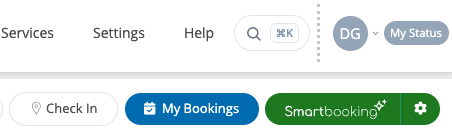
1. Go to either the Offices page or the Meeting Rooms page.
2. Press Ctrl + K on your keyboard.
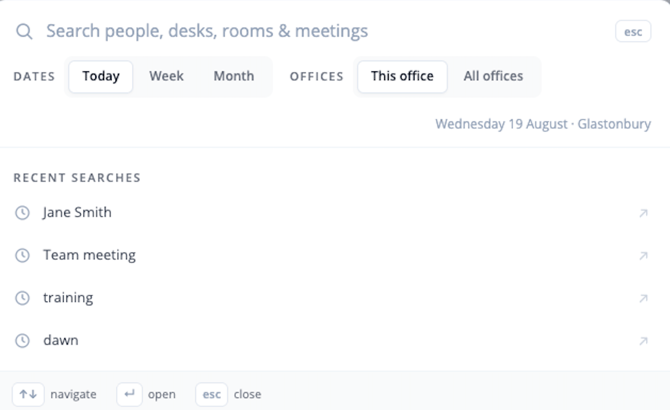
3. The search box appears in the centre of the screen, ready for you to type.
When you first open the search box, you'll see your recent searches listed underneath, so you can quickly jump back to something you searched for before.
### **Searching for people, desks and meetings**
Start typing into the search box and Clearooms will look for matches as you go. You can search using:
- A person's name, for example "Dawn", to find them and their current booking(s)
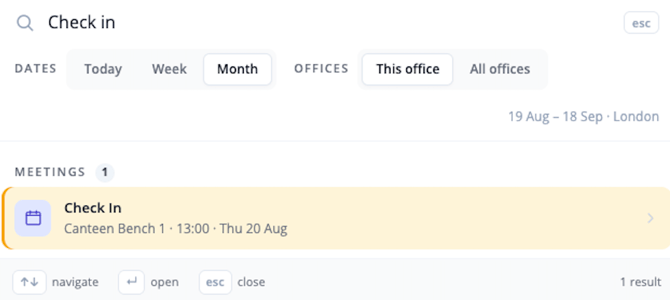
- A meeting title, for example "Check in", to find that meeting on the calendar
- A desk or room name or number, if you know it
Results are grouped under clear headings such as People, Desks and Meetings, each with a count showing how many matches were found. Selecting a person also shows their current desk booking underneath their name.
### **Narrowing your results**
Two rows of filters sit above the results, so you can narrow things down without retyping your search:
- Dates: choose Today, Week or Month to widen or narrow the date range
- Offices: choose This office to search only the office you're currently viewing, or All offices to search everywhere
The line just below the filters confirms exactly what you're searching, for example the date and the office in view, so you always know the scope of your results.
### **Recent searches and search history**
Clearooms remembers your recent searches. Open the search box without typing anything and your last few searches will be listed, each with a small clock icon. Click one to run that search again. Your search history is kept for next time you open Global Search, even if you've navigated away or closed the box in the meantime.
### **Opening a result**
Use the up and down arrow keys to move through the list, or simply click a result with your mouse. Press Enter, or click, to open the highlighted item, whether that's a person's profile, a desk booking or a meeting.
### **Keyboard shortcuts at a glance**
| **Key** | **What it does** |
| --- | --- |
| Ctrl + K | Opens Global Search from the Offices or Meeting Rooms page |
| ↑ / ↓ | Moves the highlight up or down through the results list |
| Enter | Opens the highlighted result |
| Esc | Closes the search box |
**Permissions and privacy**
Global Search is available to all users, but it only ever shows you what you're already allowed to see. If you don't have access to a particular office, that office's people, desks and meetings simply won't appear in your results. Meetings marked as private stay private, so their details won't be revealed to anyone outside that meeting.
### **Turning Global Search on or off**
Global Search will be switched on by default for all Clearooms customers. If you'd rather your organisation didn't use it you can turn it off in the account settings [here](https://portal.clearooms.com/settings/account/account-settings)
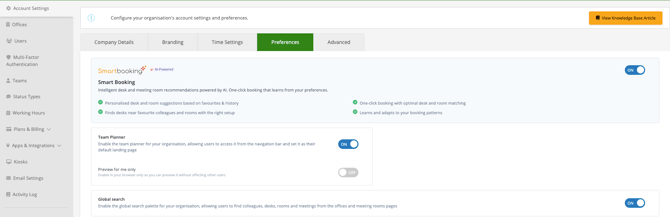
**Global Search is set at organisation level and will either be enabled or disabled for all users.**
- [FAQs](https://knowledgebase.clearooms.com/faqs?hsLang=en-gb#main-content)
- [General](https://knowledgebase.clearooms.com/faqs?hsLang=en-gb#general)
- [Hosting & Security](https://knowledgebase.clearooms.com/faqs?hsLang=en-gb#hosting-security)
- [Desk Booking](https://knowledgebase.clearooms.com/faqs?hsLang=en-gb#desk-booking)
- [Meeting Rooms](https://knowledgebase.clearooms.com/faqs?hsLang=en-gb#meeting-rooms)
- [Getting started](https://knowledgebase.clearooms.com/getting-started?hsLang=en-gb)
- [General](https://knowledgebase.clearooms.com/general?hsLang=en-gb#main-content)
- [Troubleshooting](https://knowledgebase.clearooms.com/general?hsLang=en-gb#troubleshooting)
- [Desks](https://knowledgebase.clearooms.com/general?hsLang=en-gb#desks)
- [Meeting Rooms](https://knowledgebase.clearooms.com/general?hsLang=en-gb#meeting-rooms)
- [Admin Settings](https://knowledgebase.clearooms.com/general?hsLang=en-gb#admin-settings)
- [Planning](https://knowledgebase.clearooms.com/general?hsLang=en-gb#planning)
- [Reports](https://knowledgebase.clearooms.com/reports?hsLang=en-gb)
- [Settings](https://knowledgebase.clearooms.com/settings?hsLang=en-gb#main-content)
- [Users](https://knowledgebase.clearooms.com/settings?hsLang=en-gb#users)
- [Desk Settings](https://knowledgebase.clearooms.com/settings?hsLang=en-gb#desk-settings)
- [Meeting Room Settings](https://knowledgebase.clearooms.com/settings?hsLang=en-gb#meeting-room-settings)
- [Room Display App Settings](https://knowledgebase.clearooms.com/settings?hsLang=en-gb#room-display-app-settings)
- [Services](https://knowledgebase.clearooms.com/settings?hsLang=en-gb#services)
- [Account Settings](https://knowledgebase.clearooms.com/settings?hsLang=en-gb#account-settings)
- [Event Management](https://knowledgebase.clearooms.com/settings?hsLang=en-gb#event-management)
- [Visitor Management](https://knowledgebase.clearooms.com/settings?hsLang=en-gb#visitor-management)
- [Custom Fields](https://knowledgebase.clearooms.com/settings?hsLang=en-gb#custom-fields)
- [Multi-Factor authentication](https://knowledgebase.clearooms.com/settings?hsLang=en-gb#multi-factor-authentication)
- [Manager Settings](https://knowledgebase.clearooms.com/settings?hsLang=en-gb#manager-settings)
- [Billing](https://knowledgebase.clearooms.com/settings?hsLang=en-gb#billing)
- [Status](https://knowledgebase.clearooms.com/settings?hsLang=en-gb#status)
- [Support](https://knowledgebase.clearooms.com/support?hsLang=en-gb)
- [Security](https://knowledgebase.clearooms.com/security?hsLang=en-gb#main-content)
- [SSO, SCIM Apps & Integrations](https://knowledgebase.clearooms.com/security?hsLang=en-gb#sso-scim-apps-integrations)
- [Privacy](https://knowledgebase.clearooms.com/security?hsLang=en-gb#privacy)
- [Desk Booking App](https://knowledgebase.clearooms.com/desk-booking-app?hsLang=en-gb)
- [Room Display App](https://knowledgebase.clearooms.com/room-display-app?hsLang=en-gb)
- [Video Tutorials](https://knowledgebase.clearooms.com/video-tutorials?hsLang=en-gb#main-content)
- [Getting Started With Clearooms](https://knowledgebase.clearooms.com/video-tutorials?hsLang=en-gb#getting-started-with-clearooms)
- [Clearooms Desk Booking App: Getting Started With Clearooms](https://knowledgebase.clearooms.com/video-tutorials?hsLang=en-gb#clearooms-desk-booking-app-getting-started-with-clearooms)
- [Desks](https://knowledgebase.clearooms.com/video-tutorials?hsLang=en-gb#desks)
- [Meeting Rooms](https://knowledgebase.clearooms.com/video-tutorials?hsLang=en-gb#meeting-rooms)
- [Smart Booking And Favourites](https://knowledgebase.clearooms.com/video-tutorials?hsLang=en-gb#smart-booking-and-favourites)
- [Clearooms Room Display App](https://knowledgebase.clearooms.com/video-tutorials?hsLang=en-gb#clearooms-room-display-app)
- [Apps And Integrations](https://knowledgebase.clearooms.com/video-tutorials?hsLang=en-gb#apps-and-integrations)
- [Users](https://knowledgebase.clearooms.com/video-tutorials?hsLang=en-gb#users)
- [Office Plan](https://knowledgebase.clearooms.com/video-tutorials?hsLang=en-gb#office-plan)
- [Desk Neighbourhoods & Meeting Zones](https://knowledgebase.clearooms.com/video-tutorials?hsLang=en-gb#desk-neighbourhoods-meeting-zones)
- [My Bookings](https://knowledgebase.clearooms.com/video-tutorials?hsLang=en-gb#my-bookings)
- [Services](https://knowledgebase.clearooms.com/video-tutorials?hsLang=en-gb#services)
- [Kiosk](https://knowledgebase.clearooms.com/video-tutorials?hsLang=en-gb#kiosk)
- [Custom Fields](https://knowledgebase.clearooms.com/video-tutorials?hsLang=en-gb#custom-fields)
- [Who's In](https://knowledgebase.clearooms.com/video-tutorials?hsLang=en-gb#whos-in)
- [Status](https://knowledgebase.clearooms.com/video-tutorials?hsLang=en-gb#status)
- [Help Centre](https://knowledgebase.clearooms.com/video-tutorials?hsLang=en-gb#help-centre)
- [OpenSpaces](https://knowledgebase.clearooms.com/video-tutorials?hsLang=en-gb#openspaces)
- [Parking Spaces](https://knowledgebase.clearooms.com/video-tutorials?hsLang=en-gb#parking-spaces)
- [OpenSpaces](https://knowledgebase.clearooms.com/openspaces?hsLang=en-gb)
- [Parking Spaces](https://knowledgebase.clearooms.com/parking-spaces?hsLang=en-gb#main-content)
- [Parking Misuse Reporting](https://knowledgebase.clearooms.com/parking-spaces?hsLang=en-gb#parking-misuse-reporting)
[](http://clearooms.com)
[mailto:support@email.com](mailto:support@email.com)
Copyright © 2025, clearooms.com
```json
{
"@context" : "https://schema.org",
"@type" : "VideoObject",
"caption" : {
"@type" : "MediaObject",
"contentUrl" : "https://knowledgebase.clearooms.com/media-transcripts/467320846581/en.vtt",
"inLanguage" : "en",
"name" : "en Captions"
},
"contentUrl" : "https://146800859.fs1.hubspotusercontent-eu1.net/hubfs/146800859/video_assets/467320846581/inherited/web_optimized.mp4",
"dateModified" : "2026-09-07T11:46:27.891Z",
"duration" : "PT1M27S",
"height" : 1080,
"name" : "Global Search",
"thumbnailUrl" : "https://146800859.fs1.hubspotusercontent-eu1.net/hubfs/146800859/Global%20Search.mp4/medium.jpg",
"uploadDate" : "2026-09-07T11:46:06.205Z",
"width" : 1920
}
```