
Learn more: Clearooms Versus Outlook Approvals Explained: Understand how each approval system works, why they don’t sync, and which one you should use to avoid booking conflicts.
Approvals allow designated approvers to review booking requests for both desks & meeting rooms and either approve or decline them before confirmation.
Approvers can also provide reasons for any declined requests, ensuring clear and transparent communication with the requester.
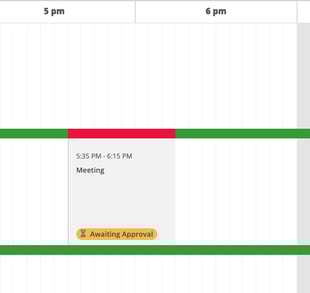
How to enable the approval process
Meeting Rooms:-
- Access Settings
- Navigate to: Settings > Meeting Rooms > Meeting Approvals.
- Assign Approvers to a Meeting Room
- Click Edit next to the relevant meeting room.
- Use the dropdown menu to select a team(s) or user(s) as approvers.
- Click Add after selecting each team or user to confirm.
- Access Settings
If you use integrated rooms, please ensure approvals are not enabled on Microsoft or Google before enabling Clearooms approvals. Use one approval process only to avoid conflicts.
- Access Settings
- Navigate to: Settings > Hot Desks > Booking Approvals
- Assign Approvers to a Meeting Room
- Click Edit next to the relevant desk.
- Use the dropdown menu to select a team(s) or user(s) as approvers.
- Click Add after selecting each team or user to confirm.
You can assign multiple teams/users as approvers. Should you do this, only one of the listed approvers within the team assigned or within the list of users will need to approve/decline, and any one of them will have the ability to action this step.
If you would like to add the same approver for all meeting rooms, simply click select all rooms, edit approver and add the approver as outlined above.
Exceptions for Booking Approvals (Meetings)
The Exceptions tab within Booking Approvals allows administrators to define specific users, teams, or roles that are exempt from the meeting approval process.
This is particularly useful when certain individuals or groups (such as managers, executives, or trusted teams) should be able to book meeting rooms instantly without requiring manual approval.
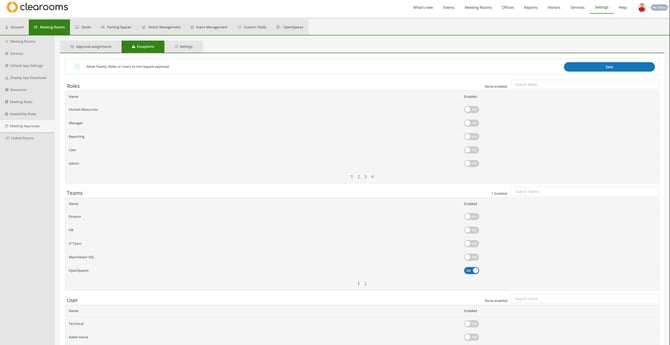
Booking Approvals – Settings Tab (Meetings)
The Settings tab within Booking Approvals allows administrators to control what happens when a meeting booking request is not reviewed within a specified timeframe.
This ensures that requests do not remain pending indefinitely and helps keep meeting room availability accurate and up to date.
When booking approvals are enabled, meeting requests are sent for approval before being confirmed. Using the Settings tab, you can define a time limit for approvals. If a request is not actioned within this timeframe, the system will automatically apply a predefined outcome.
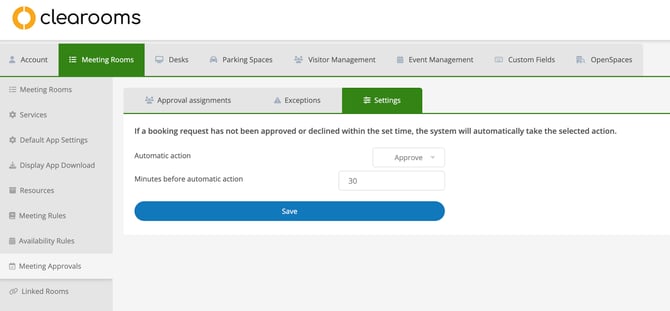
Automatic Action Options
You can choose from the following options:
None
-
No automatic action is taken
-
Booking requests will remain in a pending state until manually approved or declined
-
Best suited for organisations that require full manual control
Approve
-
The system will automatically approve the booking after the set time expires
-
Ensures rooms are not left unused due to missed approvals
-
Ideal when most requests are typically approved
Decline
-
The system will automatically decline the booking after the set time expires
-
Prevents unapproved bookings from blocking room availability
-
Useful when approvals must be explicitly granted
Managing the approval process
If you are an assigned approver, here's how to handle booking approvals:
- 1. Notifications for Pending Approvals
-
A notification badge will appear on your profile icon (top-right corner), indicating the number of bookings that require your attention. You will also receive an email alert notifying you when a meeting has been created that needs your approval.
-
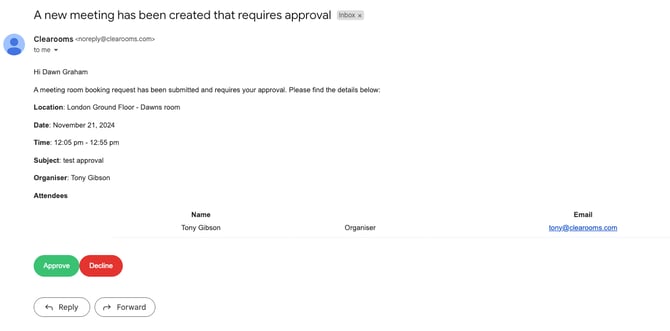
- 2. Access the Approval List
-
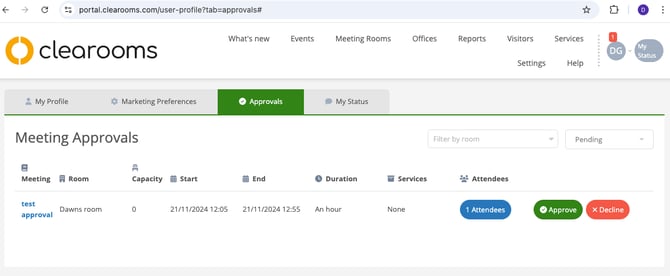
Click on your Profile Icon, then select Booking Approvals for desks or Meeting Approvals for meeting rooms.
-
This will display a list of all bookings awaiting your review.
-
Approve or Decline a Booking
-
In the Approvals list, you can either:
-
Click Approve to confirm the booking.
-
Click Decline to reject the booking.
-
-
If you decline a booking, a text box will appear for you to provide the reason for declining.
-
-
-
If multiple teams or users are listed as approvers, only 1 of them will need to approve or decline the request, and the list will be updated accordingly.