
The Bulk Auto-Book feature allows administrators to easily create bulk desk bookings for users. Instead of booking day-by-day, you can configure an automation window to handle it all at once. Desks can be booked for a period of time (fixed window) or for a continuous rolling period (Rolling Window).
Step 1: Navigate to Desk Allocations
- Go to Settings in the top navigation menu.
- On the left-hand sidebar, select Desk Allocations.
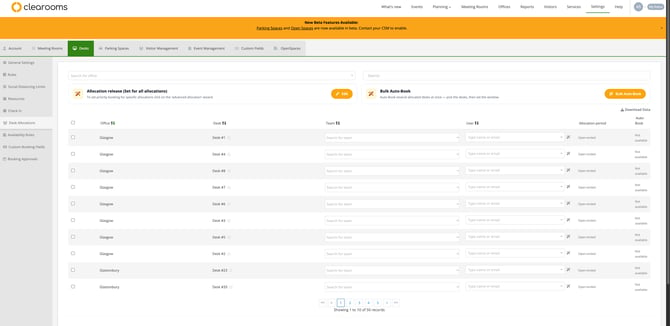
Step 2: Select Desks for Auto-Booking
- Click the Bulk Auto-Book button located in the top-right section of the main panel.
- Check the box next to each desk you wish to auto-book.
Note: Desks must already be advanced assigned/allocated to a user to be auto-booked.
- Review the yellow banner showing the count of selected desks, then click Continue.
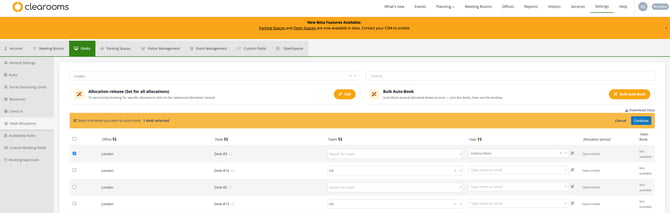
Step 3: Configure Your Window Mode
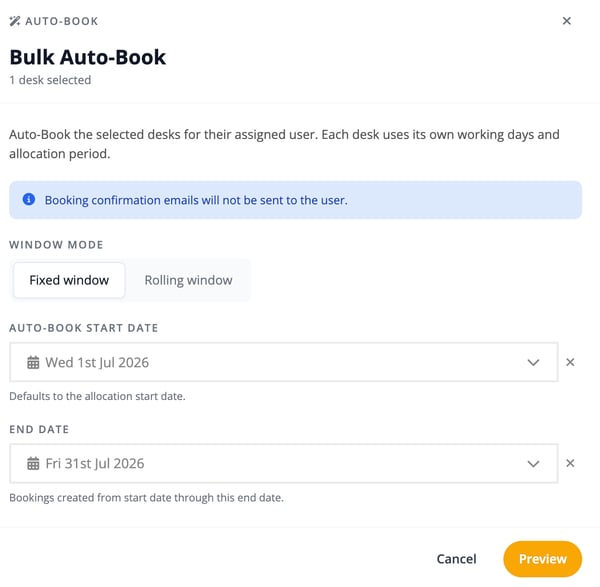
In the Bulk Auto-Book configuration modal, select your preferred booking duration strategy:
- Fixed Window: Best for specific, bounded timelines (e.g., a specific project month or a temporary team relocation).
- Auto-Book Start Date: Enter the day you want bookings to commence (defaults to the desk allocation start date).
- End Date: Select the final date for the booking block. No bookings will be generated past this date
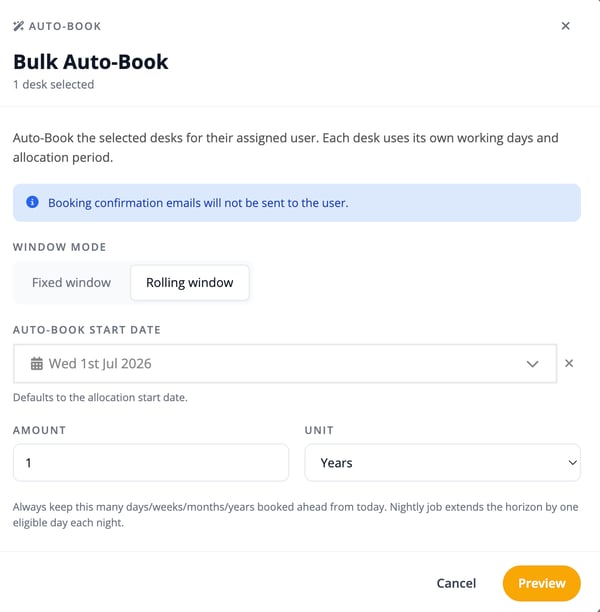
- Rolling Window: Best for long-term, ongoing, or indefinite desk assignments.
- Auto-Book Start Date: Choose when the automated schedule begins.
- Amount & Unit: Define the forward-looking horizon (e.g,
1 Yearsor3 Months). A nightly background system job will automatically extend the reservation by one eligible day each night, maintaining your set horizon continuously.
Step 4: Preview and Complete
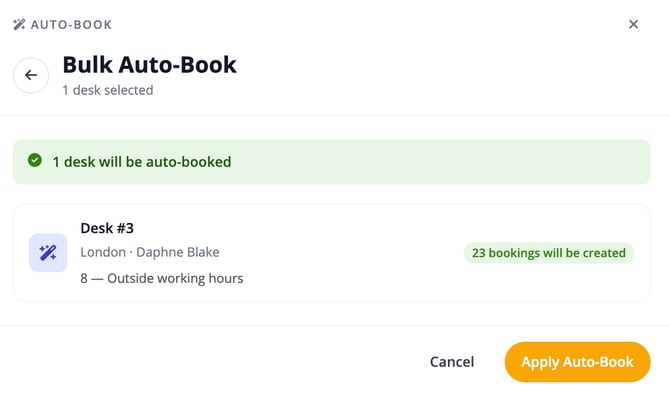
- Click the yellow Preview button to review a summary of the generated bookings.
- If everything looks correct, click Apply to complete the action.
Key Things To Know
Background Processing
When you click Apply, your booking request are added to a processing queue and completed in the background. This approach helps maintain system performance when handling large numbers of reservations.
Existing Bookings Are Protected
Auto-booking will never remove, replace, or modify existing desk reservations. The system checks the calendar and only creates bookings on dates that are currently available.
Allocation Rules Are Overridden
To ensure assigned team members retain their designated desks, this process bypasses standard advanced allocation restrictions where necessary.
Notification Emails Are Suppressed
Confirmation emails are not sent for bookings created through bulk auto-booking. This helps prevent users from receiving a large number of automated notifications.