
Adding all of your desk bookings to your calendar will help you to keep track of which desk you have booked on which date straight from your device, without having to check your emails or log onto the portal. This guide will show you how to get your unique calendar address and how to set this up on the most popular calendar applications.
Get your Unique Calendar Address
To get your unique URL, head to My Bookings
The link is available by clicking Add to Calendar at the top right of the page.

Clicking this link will show a pop-up which contains your unique URL. Click the copy icon to the right of the text box to copy the URL to your clipboard.
You can use this address to subscribe to events in any good calendar software. Guides have been created for the following:
Google Calendar
- Head to Google Calendar at https://calendar.google.com and look for the list of calendars down the left-hand side.
- You should see Other Calendars.
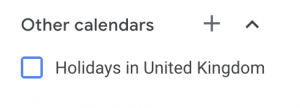
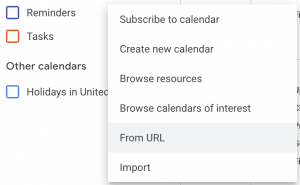
- Click the + icon to open up the pop-up and select From URL.
- Paste the URL you copied into the input box and click Add Calendar.
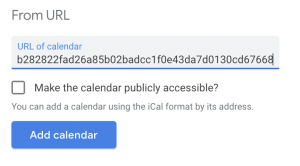
Your events will now synchronise automatically to Google Calendar.
Please be aware that we have no control over how often Google chooses to refresh the events; it can typically take a few hours between refreshes, but Google quotes 8 hours between refreshes
Outlook 365
- Head to your Office 365 Calendar at https://outlook.office.com/calendar
- Click the hamburger menu to toggle the left pane, then click Add Calendar.
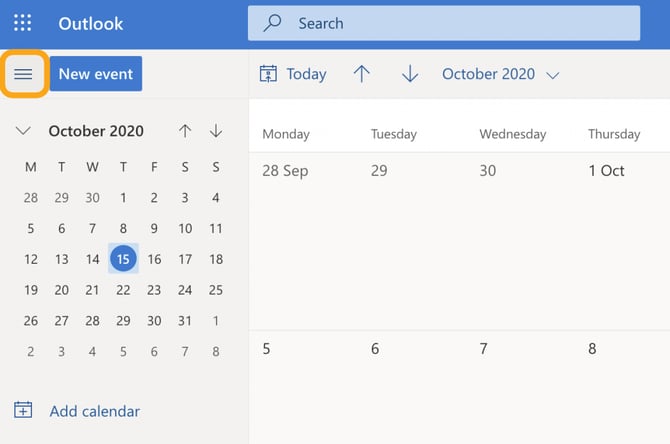
- From the menu that appears, select Subscribe from Web and paste the URL you copied into the box.
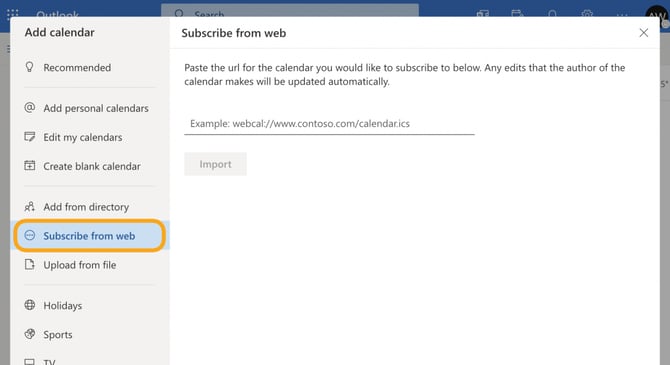
Your events will now synchronise automatically to your Outlook 365 Calendar.
Calendar (MAC IOS)
- Open your calendar app, and head to the toolbar.
- Click File -> New Calendar Subscription.
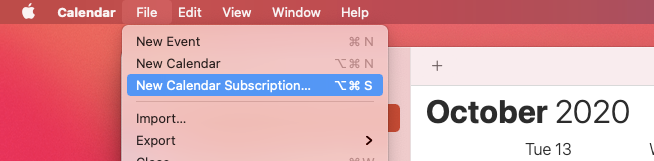
- Paste the URL you copied into the Calendar URL text box and click Subscribe.
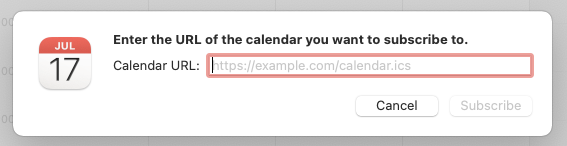
- On the next screen, make any adjustments you desire - including setting the refresh interval and click OK.

Your events will now synchronise automatically to your MacOS Calendar.
Microsoft Outlook 2016
- In Outlook 2016, click Calendar in the bottom-left corner of the window (if necessary).
- Right-click My Calendars (or any other calendar group's heading) on the left-hand side of the screen to display the options for that group.
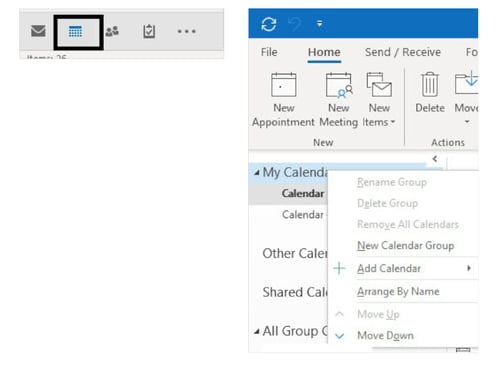
- Hover over Add Calendar and select From Internet... in the sub-menu.
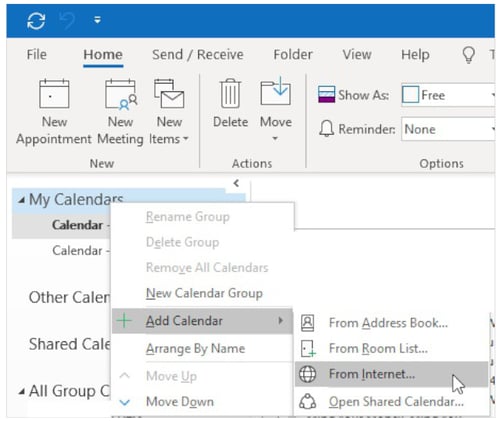
- Paste the URL you copied in the "New Internet Calendar Subscription" window that appears and click OK.
- Click Yes to subscribe to this internet calendar and add it to your list of calendars.
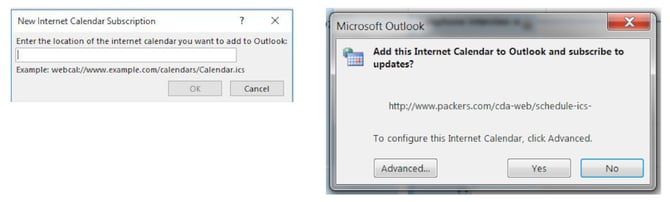
Your events will now synchronise automatically to your Outlook Calendar.
Please be aware that we have no control over how often Microsoft chooses to refresh the events but Microsoft quotes refresh intervals ranging from 3–24 hours, depending on load and caching.