
1. Open the Welcome screen settings
- Log in to the Clearooms portal and select Settings then the ArrivalsHQ tab.
- In the left-hand menu, under Admin, select Settings and then Branding.
- Scroll down to the Welcome screen section.
The Welcome screen section
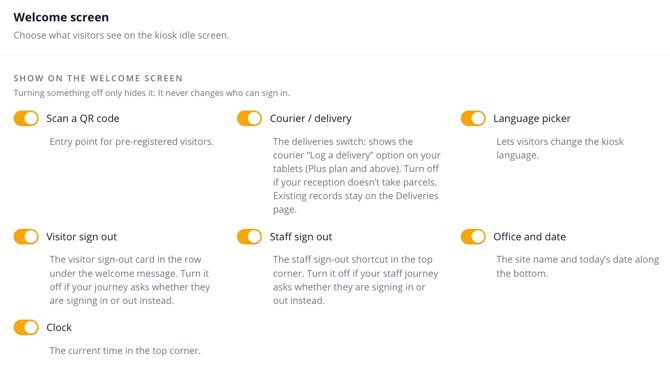
2. Turn welcome screen options on or off
Under Show on the welcome screen, select the toggle next to an option to turn it on or off. An option shows on the kiosk when its toggle is on.
- Scan a QR code: the entry point for pre-registered visitors to sign in with their QR code. Turn it off if you do not pre-register visitors.
- Courier / delivery: the Log a delivery option for couriers (ArrivalsHQ Plus and above). Turn it off if your reception does not take parcels. Existing records stay on the Deliveries page.
- Language picker: lets visitors change the kiosk language. Turn it off if all your visitors use one language.
- Visitor sign out: the visitor sign-out card in the row under the welcome message. Turn it off if your journey asks visitors whether they are signing in or out instead.
- Staff sign out: the staff sign-out shortcut in the top corner. Turn it off if your staff journey asks whether they are signing in or out instead.
- Office and date: the site name and today's date along the bottom of the screen. Turn it off if you want a cleaner welcome screen.
- Clock: the current time in the top corner. Turn it off if you want a cleaner welcome screen.
Turning an option off only hides it from the welcome screen. It never changes who can sign in.
3. Preview and save your changes
The Kiosk live preview updates as soon as you turn an option on or off, so you can see the result before you save. Make sure Idle is selected above the preview to see the welcome screen.
The welcome screen in the kiosk live preview
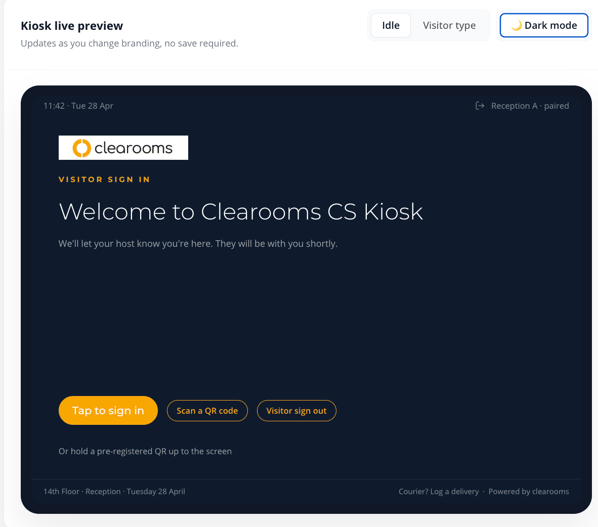
When you make a change, an unsaved changes bar appears at the bottom of the page. Select save changes to update the welcome screen on your tablets.