
What is Geofencing?
Geofencing uses a location boundary set for an office to support automatic check-in and step-out actions. Once the office is configured and a user has opted to share their location, the Clearooms app can use their arrival or departure to update their attendance status.
Office setup is managed through the Clearooms web portal. Users control whether they share their location through the app, and evidence of geofencing activity is available in the portal.
Before you start- Configure a geofence for the office you want to use.
- Enable desk check-in and the relevant geofencing options.
- Users must choose to share their location with Clearooms and your company to use location-based attendance actions.
- The Clearooms app must remain open or running in the background on the user’s phone. Geofencing will not work if the app is fully closed.
1. Set up the office geofence
Define the location boundary for your office.
- In the web portal, go to Settings > Account > Offices.
- Select the office you want to configure.
- Open Edit office plan.
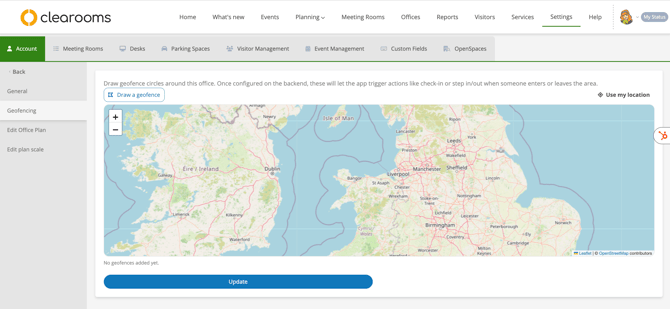
- Select the Geofencing tab.
- Set the office location and geofencing boundary using the available controls.
Configure the office you want users to check into. Users do not configure the office boundary in the app.
2. Enable check-in and geofencing actions
Choose how arrivals and departures update attendance.
- In the web portal, open Settings > Hot Desks > Check In.
- Enable Check in Required.
- Enable the geofencing option that allows users to check in automatically.
- Enable the geofencing option that allows users to step out when leaving the office, if required.
Automatic check-in
Allow opted-in users to check in automatically when they enter the configured office geofence, with the Clearooms app running.
Automatic step-out
Allow opted-in users to be marked as stepped out when they leave the configured office geofence, with the Clearooms app running.
Important: Stepping out is not the same as checking out. The existing Step Out feature lets users temporarily leave the office without having to check out and rebook their space on return. A separate maximum step-out duration rule can check out and release a booking if a user does not return within the configured period.
3. Ask users to enable location sharing
Each user chooses whether to use location-based attendance.
Users must choose to share their location in the Clearooms app to use geofencing. Configuring a geofence for an office does not override an individual user’s choice.
Ask users to:
- Open the Clearooms app.
- Enable location sharing for geofencing.
- Keep the app running, either on screen or in the background, when arriving at or leaving the office.
The app does not need to remain on screen, but it must not be fully closed or removed from the phone’s multitasking view.
4. Review geofencing activity
See evidence of location-based attendance actions in the portal.
My Bookings
Open My Bookings on the Clearooms website to view evidence that geofencing was used for attendance actions.
Desk Booking Report
Geofencing activity is also included in the downloaded Desk Booking Report.
To review bookings:
- Open the Desk Booking Report.
- Choose the date range you want to review.
- Filter by Office Location to focus on the configured office.
- Apply a Team filter if needed.
- Generate the report and use the download option to review the booking information, including evidence of geofencing activity.
Troubleshooting
Automatic check-in or step-out is not working
Check that:
- A geofence has been configured for the correct office.
- Check-in and the relevant geofencing action have been enabled.
- The user has opted to share their location.
- The Clearooms app is running on the phone, either on screen or in the background.
If the app has been fully closed, reopen it and keep it running before testing the feature again.