Navigate to the Offices Tab
Log in to your Clearooms account and click on the Offices tab located in the main navigation menu.
Select a Parking Space
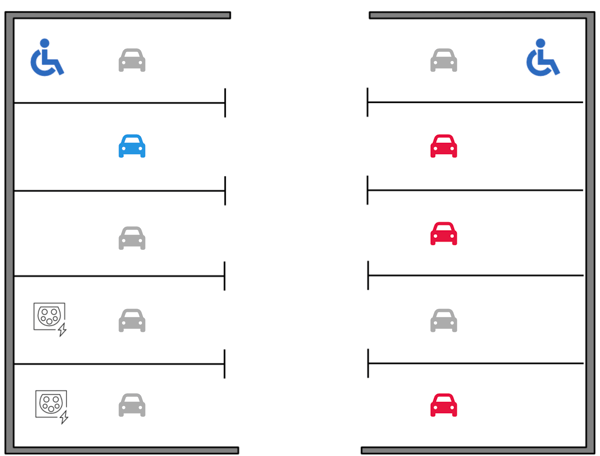
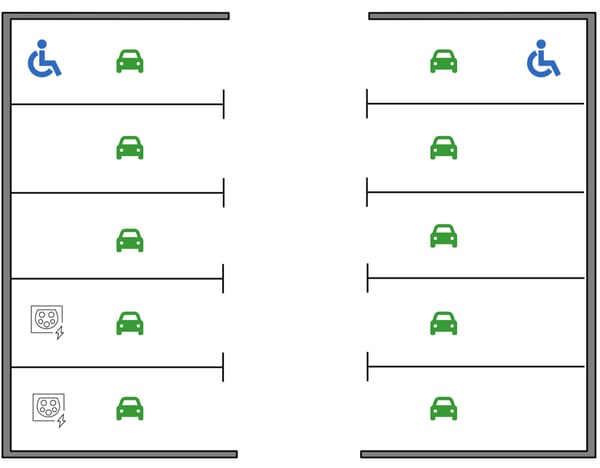
Locate the parking area on the interactive map and click on an available Parking Space icon that you wish to reserve.
Choose Your Booking Duration
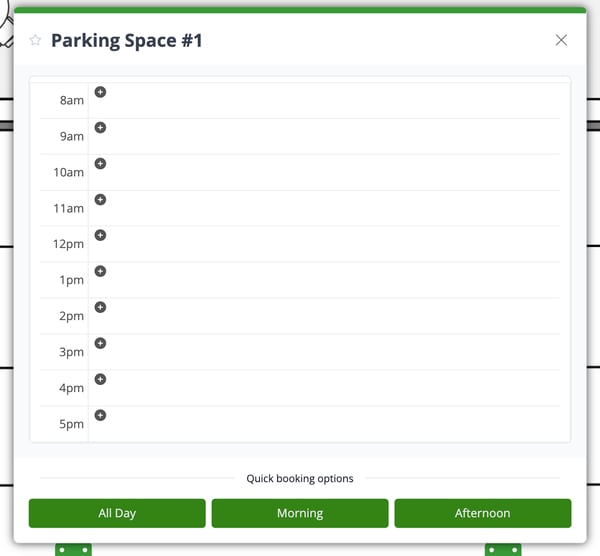
Specify how long you need the parking space. You can either:
-
Enter a Custom time to specify exact start and end times.
-
Use the quick booking options to instantly reserve the space for All Day, Morning, or Afternoon.
Select Your Booking Date(s)
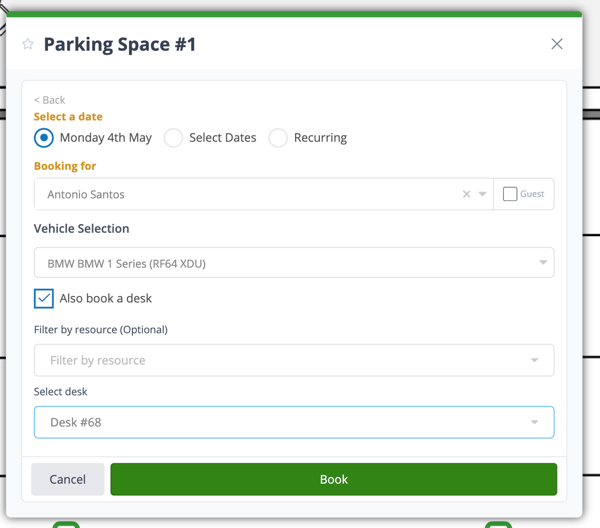
Choose the dates you need the parking space by selecting one of the following options:
-
Today's Date: Quickly book the space for the current day.
-
Select Dates: Pick multiple specific days from the pop-up calendar.
-
Recurring: Create a repeating booking by selecting the days of the week you need the space and defining how many weeks the booking should last.
Assign the Booking
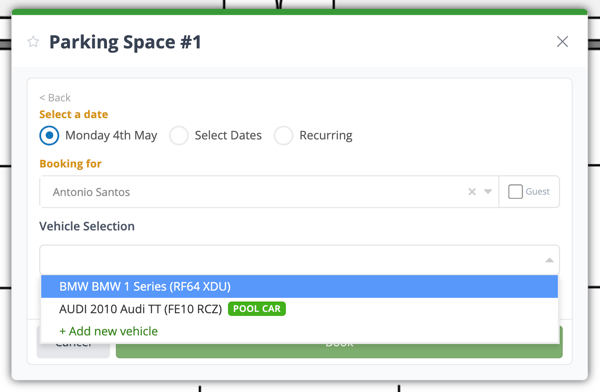
Indicate who the parking space is for. By default, this will be set to yourself, but you can change it:
-
Yourself: Leave as is to book under your own name.
-
Colleague: Select a coworker from the dropdown list.
-
Guest: Choose the guest option if you are reserving the space for an external visitor.
Select Your Vehicle
Choose the vehicle you will be parking from the Vehicle Selection box.
Important Note: Your vehicle must be registered in the system before you can select it. If the dropdown is empty, please navigate to your user profile settings and set up your vehicle profile first.
Additional Option: Book a Desk
Clearooms allows you to streamline your morning by booking a desk at the same time as your parking space.
-
Tick the Book a desk option.
-
Select your preferred desk from the provided dropdown list.
Finalise Your Booking
Review your selected time, dates, and vehicle details. Click the Book button to confirm your reservation. Your parking space (and your desk, if selected) is now successfully booked.