1. Open the Welcome background settings
- Log in to the Clearooms portal and go to your Settings and select the ArrivalsHQ tab.
- In the left-hand menu, under Admin, select Settings and then Branding.
- Scroll down to the Welcome background section.
2. Set a background colour
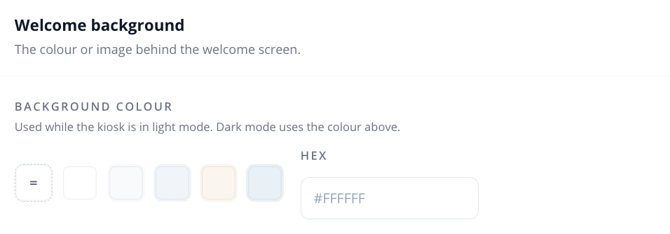
The Background colour is used while the kiosk is in light mode. Select a preset colour, or enter your own in the Hex field, for example #FFFFFF.
In dark mode, the kiosk uses the Dark-mode background you set in Theme & accent colour instead.
The Background colour setting
3. Add a background image (optional)
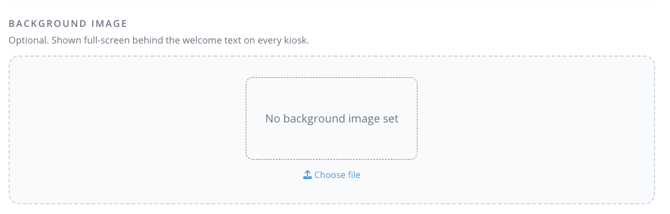
A background image is shown full-screen behind the welcome text on every kiosk. Under Background image, select Choose file, then select your image.
If no image is set, the section shows No background image set and the kiosk uses your background colour.
The Background image upload area