
Enabling the Recurring Visitors Feature
Before users can log repeat guests, the feature must be activated in your global settings by an administrator.
-
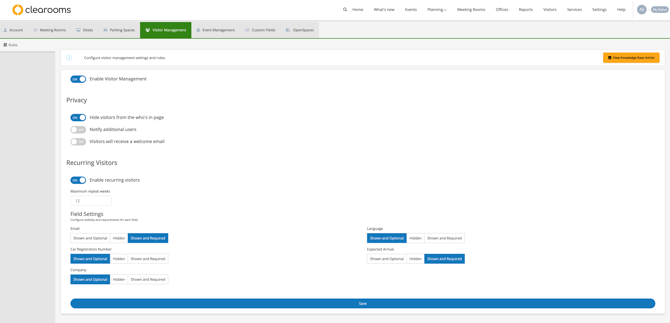
Navigate to Settings > Visitor Management.
-
Locate the Recurring Visitors section.
-
Toggle the Enable recurring visitors switch to ON.
-
Set the Maximum repeat weeks: This defines the limit for how far into the future a recurring series can be booked (e.g., 12 weeks).
How to Log a Recurring Visitor
Users with access to the Visitors tab can create a recurring entry directly from the dashboard.
-
Click the Log a Visitor button.
-
Fill out the visitor's details (Name, Email, Company, etc.) as usual.
-
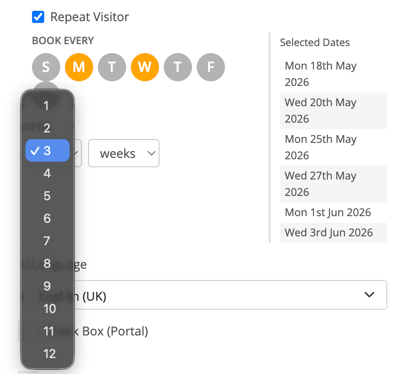
Check the Repeat Visitor tick box at the top of the form.
-
Define the Schedule:
-
Book Every: Select the specific days of the week the guest will visit (e.g., Monday and Wednesday).
-
For: Choose the duration of the repeat series from the dropdown menu (up to your maximum allowed weeks).
-
-
Review the Selected Dates summary on the right to ensure the schedule is correct.
-
Click Save.
Managing Recurring Guests in the Dashboard
Once logged, recurring visitors are easily identifiable within your visitor log.
-
Visual Indicator: All recurring guests will feature a circular arrow symbol next to their name, indicating they are part of a series.
-
Modifying Bookings: You have the flexibility to manage individual instances or the entire schedule:
-
Delete a Single Visit: Remove the guest for one specific day without affecting the rest of the series by clicking on the bin icon.
-
Cancel Series: Select Cancel Series (found on the right of the bin icon) to remove all future scheduled visits for that guest.
-

Adding Recurring Visitors via Meeting Creation
You can also register a repeat guest while scheduling a room or meeting, ensuring their building access aligns with your calendar.
-
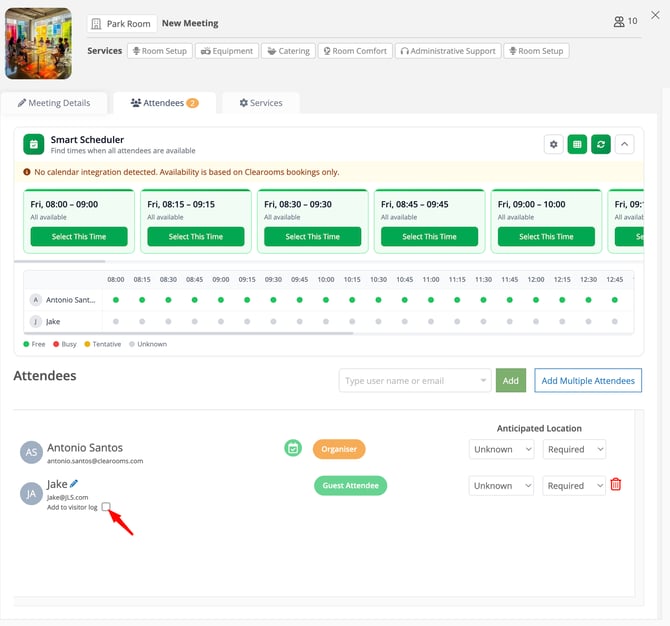
During the Create a Meeting process, navigate to the Attendees tab.
-
Enter the visitor’s email address and click Add.
-
Once the guest appears in the list, check the box Add to visitor log.
4. The visitor registration form will appear. Select the Repeat Visitor checkbox and configure the schedule as described above.
5. Upon saving the meeting, the visitor will be automatically synchronised with the Visitors Dashboard for all selected dates.
