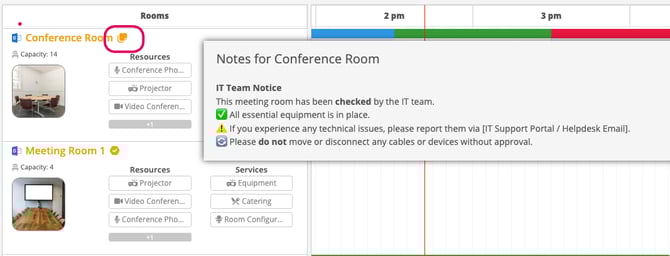
Meeting Room Notes allow you to highlight key features of a room for users booking it. These notes can be for anything you like to communicate to a person that is viewing the room.
It is possible to add images, format and add links. Details can be shared in email notifications such as the meeting invitation or meeting approved email.
Steps to Add a Room Note:
-
Navigate to Settings > Meeting Rooms
-
Click on the relevant meeting room highlighted in blue
-
Scroll to Room notes
-
Add your note
-
Scroll down and click submit to save
How Users See Room Notes:
When users click on the Meeting Rooms tab they will notice a notes icon next to any meeting rooms with notes added. If you hover over the icon a message will say "This room has notes" Click the icon to reveal the note.
Adding Notes to Email Notifications:
-
Navigate to Settings > Account > Email Settings
-
Under templates click edit next to the relevant template
-
Click in the space where you want the office note to be added. Next click on the variables icon (x) and select office notes
-
Click Save