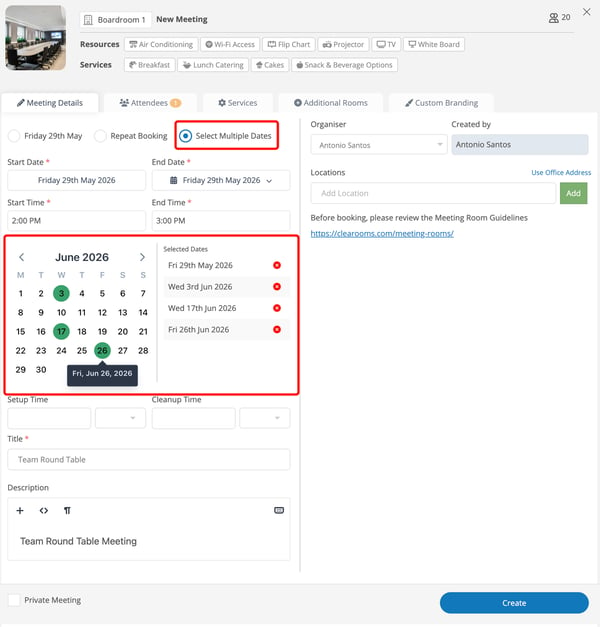
The Select Multiple Dates feature allows users to pick and book several specific days for a meeting all at once. This is perfect for irregular schedules, such as a project that meets on a random Tuesday, Thursday, and the following Monday, saving you from making separate bookings for each day.
For Admins: How to Enable It
To give your team this option, turn it on in your admin settings:
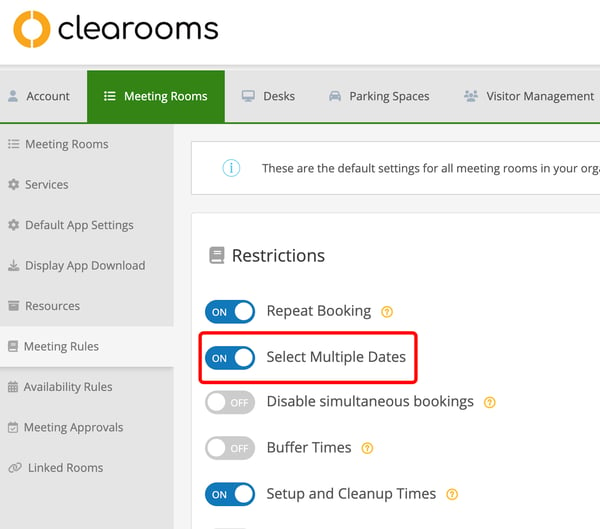
- Go to the Meeting Rooms tab at the top of the page.
- Click Meeting Rules on the left menu.
- Under the Restrictions section, toggle Select Multiple Dates to ON.
For Users: How to Book Multiple Dates
Once the admin turns this on, you can use it whenever you book a meetingroom:
- Click to create a New Meeting.
- Under the Meeting Details tab, select the Select Multiple Dates option.
- A calendar will appear. Simply click on all the specific days you need.
- Your chosen days will appear in the Selected Dates list. (If you make a mistake, just click the red X to remove a date).
- Enter your meeting time, title, and details, then click Create to book the room for all selected dates at once.