
Desk Neighbourhoods and Meeting Zones allow you to visually group desks and meeting rooms on your office floor plan.
These zones make it easier for users to understand the layout of your workspace and give administrators powerful tools to manage who can book certain areas.
This guide explains what each zone type does, how to use them, and the optional controls available.
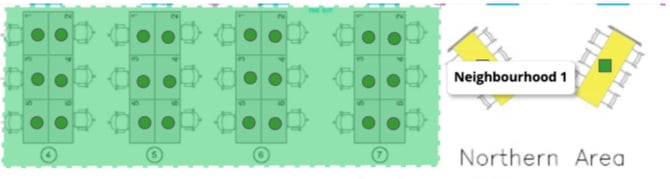
What Are Zones and Neighbourhoods?
Zones and Neighbourhood are areas you draw directly onto your floor plan in Clearooms. They help you:
- Highlight groups of desks.
- Identify specific meeting room areas.
- Apply booking rules such as team-only access.
- Improve navigation and clarity for users.
Summary:
- Neighbourhoods – for grouping desks
- Meeting Room Zones – for visually identifying meeting rooms
Neighbourhoods (Desk Areas)
Neighbourhoods let you group desks into logical areas—for example:
- Departments (e.g. Marketing, Finance).
- Project teams.
- Neighbourhoods within an open-plan space.
- Quiet area's or collaboration areas.
Once created, Clearooms automatically detects which desks fall within the boundary.
How to Create Desk Neighbourhoods
Navigate to Offices
-
Click on the Offices tab.
-
Select the relevant office and click Edit Office.
Open Neighbourhood Management
-
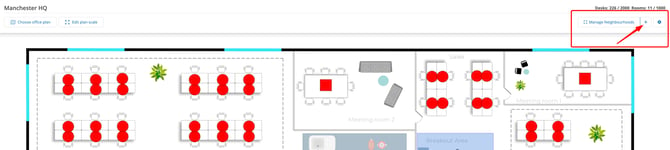
Click the plus (+) icon next to Manage Neighbourhoods.
-
The drawing tool will appear below your floor plan.
Draw the Neighbourhood
-
-
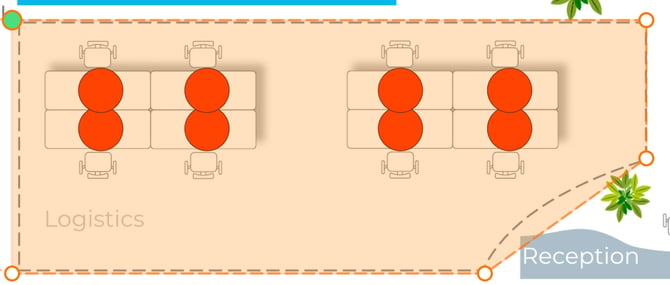
Click on the floor plan to begin drawing your neighbourhood around a set of desks.
-
Important: A neighbourhood must include at least one desk; you cannot create a neighbourhood without desks inside it.
-
-
Continue clicking to connect the points around the desired area.
-
Return to the green starting point to complete the outline.
-
Once completed, the neighbourhood will automatically be saved.
-
Manage and Configure the Neighbourhood
-
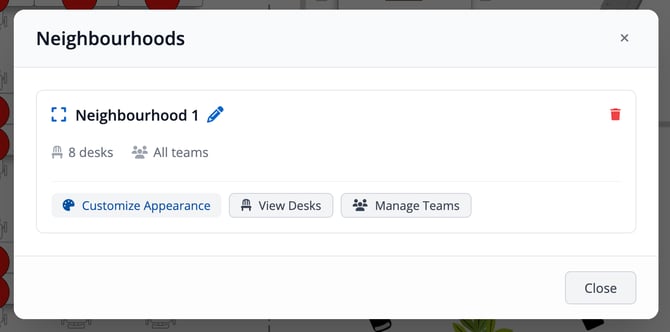
Click Manage Neighbourhoods in the top-right corner.
-
Edit the neighbourhood name
-
Customise the appearance
-
View the desks included in the neighbourhood
-
Control which teams are allowed to book desks in this neighbourhood. If no teams are selected, the neighbourhood will be available to all users by default.
- If you wish to delete a neighbourhood, click the Delete button on the right-hand side.
-
Customising Neighbourhood Zones
Neighbourhoods can be visually tailored to suit your office layout and brand preferences.
Display Options
- Show or hide zone names.
- Adjust font size (8–48.
- Choose text colour.
- Hide borders when hovering on the hot desks page.
- Disable hover information modals.
- Display a tooltip with the neighbourhood name when hovering.
Colouring Options
You can choose between:
1. Dynamic Colouring (Recommended)Colours automatically update based on desk availability:
- Green: All desks available
- Amber: Some booked
- Red: Fully booked
Choose a fixed background colour that remains the same at all times.
Border Controls
- Show/hide the border.
- Border colour.
- Border width (1–10px).
- Border style: Solid, Dashed, or Dotted.
Capacity
Set a transparency level between 0–100% (default is 30%), allowing the desks beneath to remain visible.
Desk Assignment Rules
- Each desk can belong to only one neighbourhood.
- If a desk is already part of another neighbourhood, you’ll see an error.
- You can manually add or remove desks from a neighbourhood.
- Use Reallocate Desks at any time to automatically update assignments based on the current boundary.
Restricting Who Can Book Desks
Neighbourhoods can optionally be linked to Teams, allowing you to control who is allowed to book desks in a particular area.
How Team Restrictions Work
- Assign one or more teams to a neighbourhood.
- Enable Restrict neighbourhoods to assigned teams in Desk Limits.
- Only users in those teams can book desks in that zone. If no teams or users are assigned, all users may book desks.
What Users See if Restricted
If someone tries to book a desk they’re not authorised to use, they’ll see a helpful message such as:
“This desk is in the Marketing neighbourhood, which is allocated to the Marketing team.”
Special Permissions
Users with the bookings. The override-allocations permission can book desks in any neighbourhood regardless of restrictions.
Meeting Room Zones
Meeting Room Zones highlight rooms on your floor plan, helping users quickly understand where they are and whether they are free.
How to Create a Meeting Room Zone
Navigate to Offices
-
Click on the Offices tab.
-
Select the relevant office and click Edit Office.
Select the Meeting Room
-
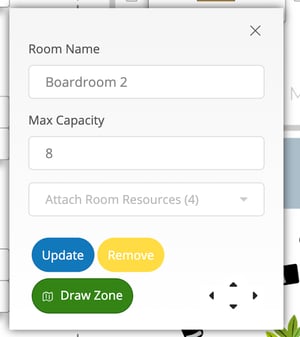
Click on the meeting room on the floor plan.
-
You will see the option to Draw Zone.
Start Drawing the Zone
-
Click Draw Zone.
-
The drawing tool will appear below your floor plan.
Draw the Meeting Room Zone
-
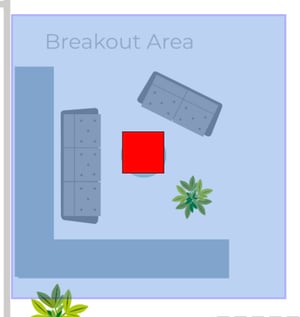
Click on the floor plan to begin drawing the zone around the meeting room area.
-
Continue clicking to connect the points around the desired area.
-
Return to the green starting point to complete the outline.
-
Once completed, the meeting room zone will automatically be saved.
How to Edit a Meeting Room Zone
Select the Meeting Room
-
Click on the meeting room that already has a zone applied.
Edit the Zone
-
Select the Edit Zone option.
Customisation Options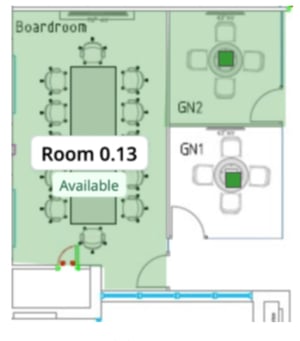
- Show or hide room icon.
- Show or hide the room name.
- Display or hide meeting attendees.
- Display availability text (e.g. “Available”, “Occupied”).
- Adjust font size & colour for room names.
- Choose zone fill colour and opacity.
- Change border style, width and colour.
- Disable hover effects if preferred.
These settings help make your meeting rooms clearer and more accessible at a glance.
Important Notes
- Neighbourhood restrictions are optional.
- Restrictions work alongside other rules, such as desk allocations and limits.
- Deleting a neighbourhood removes the restrictions, but desks remain unaffected.
- Moving a desk out of a neighbourhood removes any team allocation tied to that zone.
- Desk and room positions are calculated based on your floor plan dimensions, so accurate scaling helps with automatic desk detection.
Desk Neighbourhoods and Meeting Room Zones are currently not supported in the mobile app.