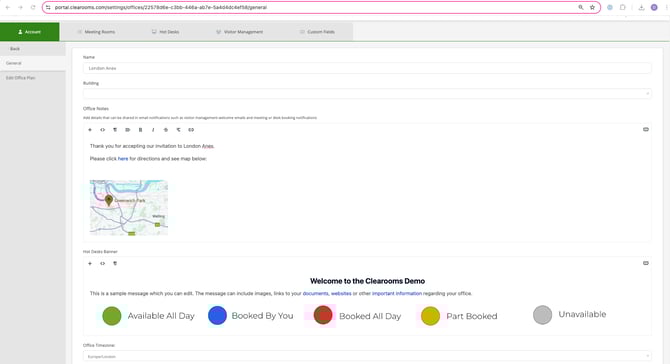
Office notes allow you to add notes specific to a particular office. The notes can then be shared in email notifications. This could be useful for example, in a visitor welcome email to include directions to the office and even an image or link for directions.
Steps to Add an Office Note:
-
Navigate to Settings > Account > Offices.
-
Click on the relevant office highlighted in blue.
-
Add your note under Office Notes.
-
Scroll down and click update to save.
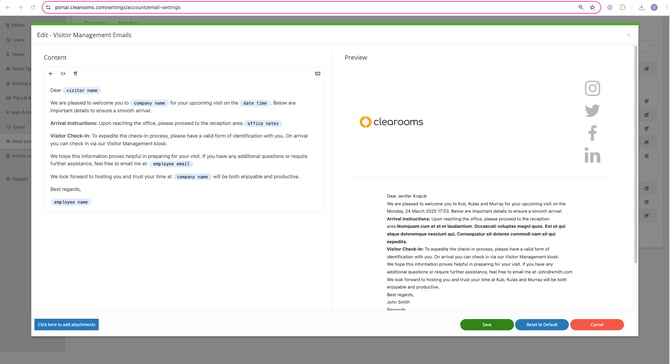
Adding an Office Note to an Email Template:
-
Navigate to Settings > Account > Email Settings.
-
Under templates click edit next to the relevant template.
-
Click in the space where you want the office note to be added. Next click on the variables icon (x) and select office notes.