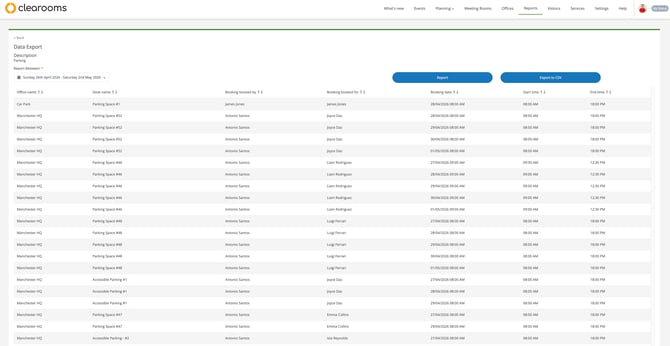
Creating a Report
-
Click “Create New Export Report”
-
Add a Report Name
Give the report a memorable name, e.g., “Daily Parking Bookings”.
-
Add a Description
Provide a short description to help identify its purpose, e.g., “Parking Spaces Report, Runs daily at 9am”.
-
Select Report Fields
Tick the information you wish to include in the report.
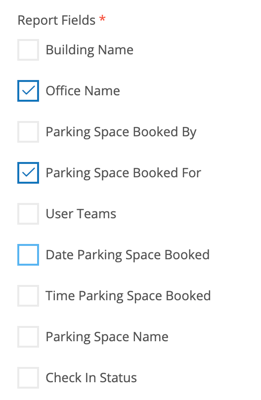
Tip: When custom fields are included, you can choose to include deleted fields by ticking the relevant option. If left unticked, deleted fields will be excluded by default.
Scheduling the Report
-
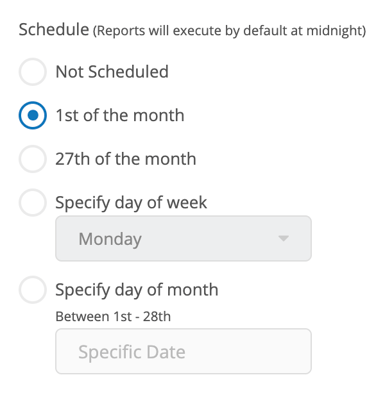
Select a Schedule
Choose how often the report should run automatically.
-
Enter Recipient Email
Specify the email address(es) to deliver the report to.
-
Set the Time
Choose the time of day the report should run.
-
Click Create Report
The first run will return all historical data. Subsequent runs will only include new data since the last report.
Even if scheduled, the report can still be run on-demand anytime via Reports > Data Export.