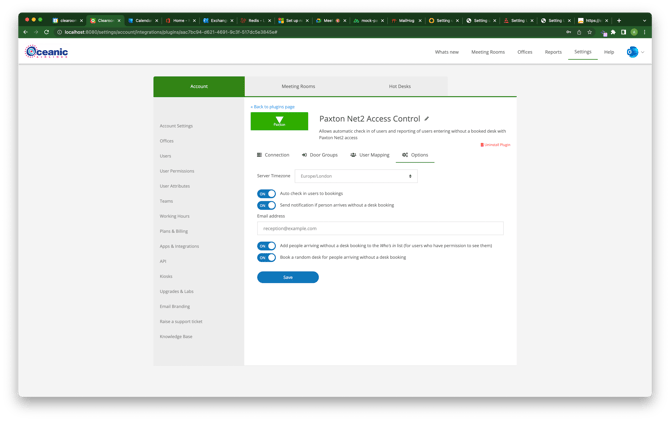
This guide will walk you though the 4 steps to set up your Paxton integration on Clearooms.
-
Please check your Paxton account and ensure all users have an associated email address against their profile so that users are automatically synced.
Paxton has the function to export users, add the email address's and import to update this fast for all users.
-
YOUR PAXTON NET2 INSTANCE MUST BE ON VERSION 6.0.2 OR ABOVE
Step 1. Connect to your account
Within Clearooms navigate to Settings > Account > Apps and Integrations > Plugins

-
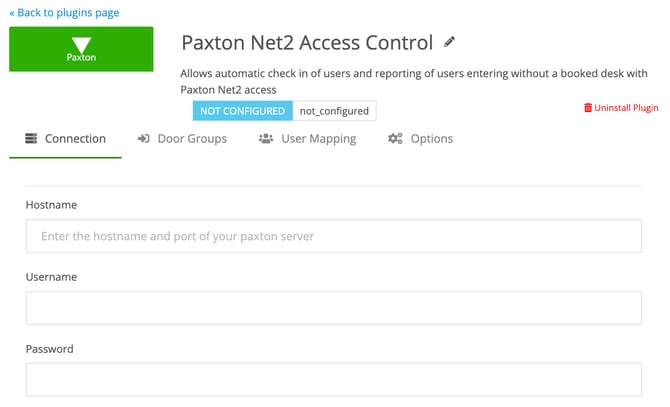
Enter your hostname
The host name needs to be the full URL and port required to access your Paxton Net2, e.g. `http://<ip address>:8080. Some customers prefer to create a DNS entry and use, for example http://clearooms.yourdomain.com:8080
Using HTTPS:
The API website is a secure SSL site, but requires the SSL certificate to be installed. Paxton have provided a service to complete this. When browsing to the website, please click on the 'Certificate Manager' header. Here you will find the certificate installer that will install the SSL certificate needed and provide you with a secure connection to the website help pages.
-
IP Access:
In order to facilitate this connection, it is necessary to provide credentials and remote connectivity to your Net2 instance to be accessed over the internet. If your network enforces IP blocking or "allow listing", it will be necessary to enable the following Clearooms production IPs:
52.51.35.2

52.215.149.239

34.245.213.208

34.244.88.122

34.247.37.214

52.48.245.205
Port 8080
- Enter user name (This must be a user with the Supervisor or System Engineer Operator Rights - see image below)
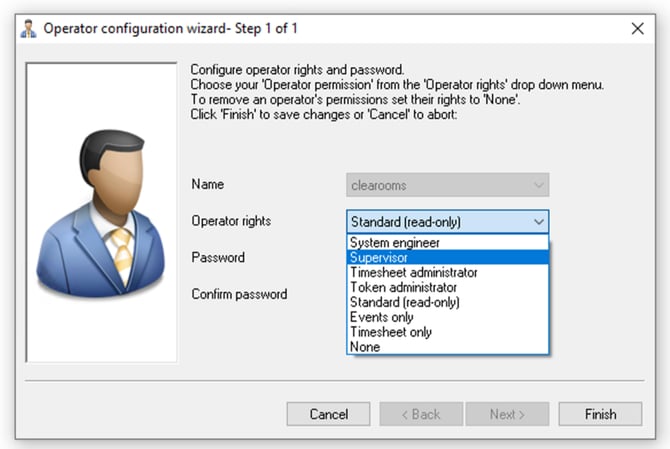
You can use the standard (read-only) access, but the user must have access to all the doors you wish to sync to your Clearooms account.
-
Enter the Password for the user
-
To access the API, you will be required to place the licence file (link to file below) in the following location:
[INSTALL_LOCATION]\Access Control\ApiLicences
Which by default is here (this folder may not exist; if it does not, create it.
C:\Program Files (x86)\Paxton Access\Access Control\ApiLicences
-
Test your connection - any login issues will be displayed
Clearooms Licence Key:
Step 2. Map your Doors to Offices
Map Doors to your Office locations in Clearooms
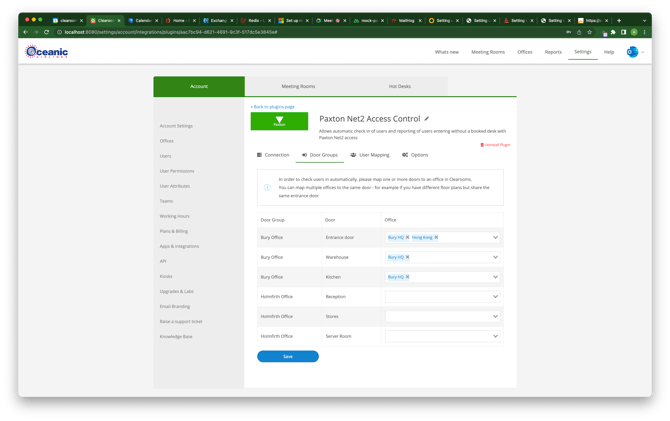
You can map more than one office to a door. This is particularly relevant if you have multiple floors and want to only register/check in a person's arrival once, even if they move between floors on the day.
Step 3. Map Users
Clearooms will auto-map any matching email addresses in Paxton to users with the same email in Clearooms.
Any users who are not auto-mapped can be manually mapped in this screen.
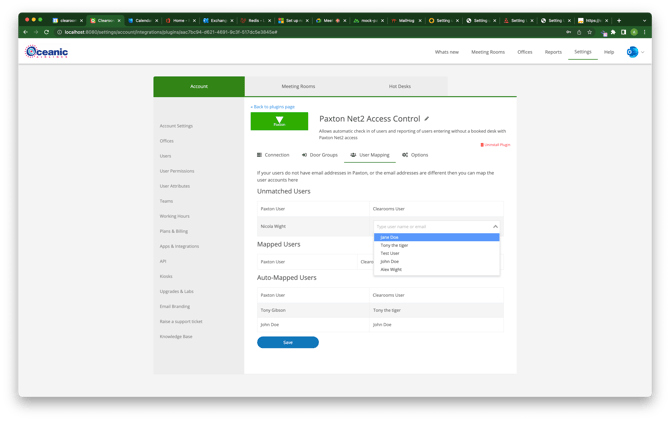
You can export your Paxton users and re-import with email addresses populated before this step, so that the auto-mapping maps all users.
Step 4. Configure options
Final step and the most important, set up the rules you wish to apply to the integration:
-
Auto Check-in Users to bookings
-
Send a notification to a dedicated person when someone enters without a booking
-
Add people arriving without a desk booking to the "Who is in" list
-
Book a random desk for people arriving without a booking