
Overview
The Clearooms Display App is provided for evaluation, setup, and deployment across your workspace. All three display themes (Legacy, Landscape, and Portrait) are fully available in this build, and you are welcome to use any or all of them depending on your hardware setup. Please report any unexpected behaviour to our support team.
1) Download and install the app
Download the production build of the Clearooms Display App (v3.0.16) and install it on the device you intend to use. Once installed, open the app to reach the login screen.
2) Log in to the app
You can log in with any valid Clearooms user, but we recommend creating a dedicated standalone "app" user for this device rather than tying it to a real employee account. This keeps the device independent of any one person's profile, and makes it easier to retire or rotate later.
-
Your Clearooms account contact can assist you in setting up the dedicated app user.
- Note: Whichever account you use, make sure the user has "Skip SSO" enabled on their profile so the app can authenticate without going through your identity provider.
3. Connect the app to a room
After logging in, you will be presented with a list of meeting rooms available in your Clearooms tenant. Select the room you want this device to display. The app remembers this choice for subsequent restarts.
4. Open the App Settings page in the portal
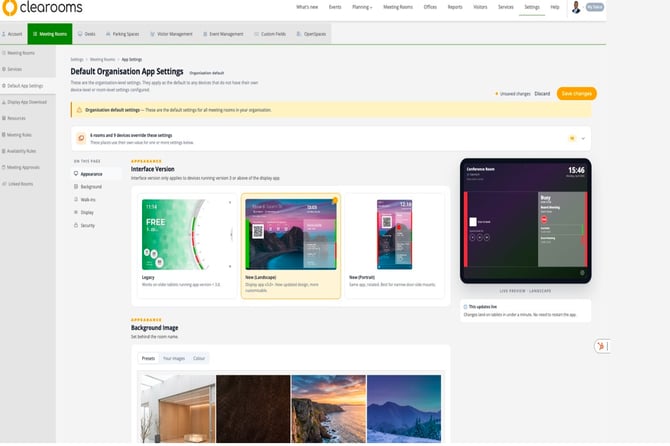
Once the app is installed and connected, head to the Clearooms portal:
https://portal.clearooms.com/settings/meeting-rooms/app-settings
The page should load the new App Settings layout. If it does not, refresh the page.
Only proceed once the new layout has loaded, older cached versions will not contain the new theme selector or font colour picker.
IMPORTANT NOTE:
Understanding Display Settings Tiers
When configuring your displays, please note that Clearooms uses a three-tier priority system for its settings. A tier lower on this list will always override a tier higher up:
1) Organisation-Level Settings: These apply as the default configuration to any devices that do not have their own device-level or room-level settings configured.%20copy.png?width=670&height=288&name=image%20(2)%20copy.png)
2) Room-Level Settings: These settings override the organisation defaults for a specific room only.
%2010.19.47.png?width=670&height=126&name=image%20(2)%2010.19.47.png)
3) Device-Level Settings: These override both the organisation and room settings. Any device assigned to a specific room will use these device-specific settings instead of the other two tiers.
.png?width=670&height=123&name=image%20(2).png)
5. Choose your display theme
On the App Settings page, pick the theme you would like the device to use. Three themes are available in v3.0.16:
- Legacy: The classic display. Works on older tablets running app version < 3.0.
- Landscape: The new horizontal layout. Updated design and more customisation.
- Portrait: The same app, rotated. Best for narrow door-side mounts.
Note: You may need to fully close and restart the app for a newly-selected theme to take effect on the device.
6. Set the background image or colour
Choose a background for the display from the supplied library, pick a solid colour, or upload your own
-
Uploaded images must be under 1 MB - larger files will be rejected by the portal.
-
For best results, use an image at the native resolution and orientation of your test device.
7. Customise the font colour
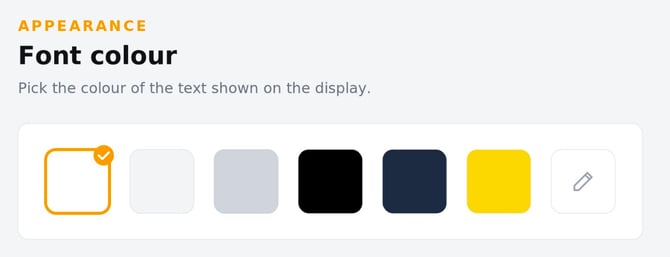
You can choose the colour of the text shown on the display. On the App Settings page, scroll to the Appearance section and pick one of the supplied swatches, or use the pencil icon to enter a custom hex value.
- Pick a colour that contrasts well with your chosen background so room information stays legible.
- Use the pencil swatch on the right to enter a custom hex code (for example, to match your brand palette).
- Changes preview live in the panel on the right; you do not need to restart the app for the new colour to land on the device.
8. Review remaining settings and save
Work through the remaining options on the App Settings page (room list visibility, walk-in meetings, end-meeting controls, idle behaviour, etc.) and confirm each one matches how you want the device to behave. Save any changes you make before leaving the page.
9. Expected behaviour on the device
Once the configuration is complete, the app should display:
- Today's meetings only: The app shows only meetings scheduled for the current day for the connected room.
- Walk-in meeting creation: Subject to your settings, users can start an ad-hoc meeting directly from the screen.
- End-meeting controls: Users can end a meeting early, freeing the room in real time.
- Themed appearance: The chosen theme, background, and font colour are applied to the room display.
- Other features: Additional controls appear or are hidden based on which options you enabled in Section 8.
10. Reporting issues to Clearooms
If you experience any issues or unexpected behaviour, please submit a report including your device model, app version (v3.0.16), the room you were connected to, the time of the issue, and a screenshot or short screen recording where possible.
Send the report to your Clearooms contact or directly to support@clearooms.com.