Set up
-
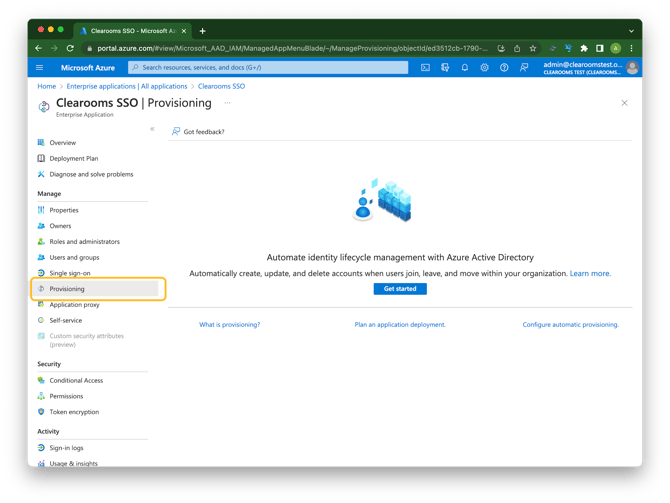
Navigate to your Azure Active Directory Admin site
-
Open Enterprise Applications and open your SSO app or create new
-
Click on "Provisioning"
-
Click "Get Started"
Add URL's
-
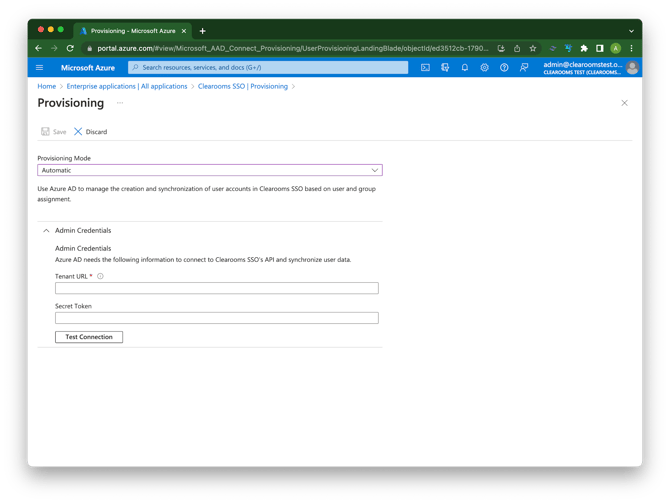
Ensure mode is "Automatic"
-
Open Clearooms Portal and navigate to SCIM Set up page
-
Enable SCIM user provisioning
-
Copy the SCIM URL and paste into Azure "Tenant URL"
-
Copy the password from the Clearooms portal and paste into the Azure "Secret Token"
-
Save the settings in Clearooms
-
In Azure click "Test Settings"
-
Save in Azure
Test your setup
IMPORTANT: Do not enable in Azure yet.
-
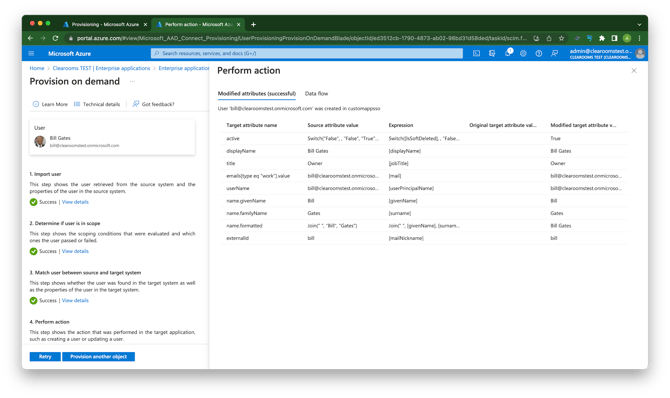
Open Provision on demand
-
Test 1 user
-
Gain confirmation in Azure of success
-
Open Clearooms and view that user in settings to confirm provisioning has occurred (Azure badge next to name will appear)
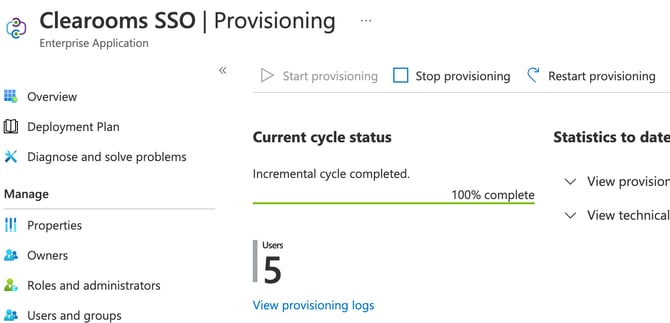
Finished
-
Enable in Azure
-
Done