
You can now attach a document to any meeting room service, a catering menu, an AV equipment catalogue, an order form, a setup guide, anything your bookers might need. When they pick that service on the booking form, the document is right there to view or download. No emails, no chasing, no out-of-date PDFs floating around inboxes.
Setting it up takes thirty seconds under Settings, Meeting Rooms, Services. Any file type works, though PDF is best because it displays correctly on every device. You can swap the document out whenever your offering changes, and every booking from that point on shows the latest version. It is a small touch, but it tidies up a workflow your team probably trips over every day, and it makes the booking experience feel polished and professional.
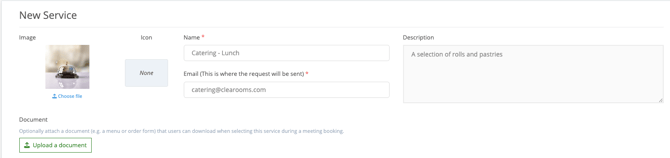
Adding a document to a Service:
- Navigate to the Services menu under meeting rooms.
- When creating a new service click upload document and add the relevant document. Remember to click create service to save the new service.
- If you wish to add a document to an existing service click the edit icon on the relevant service. Click upload document and add your document. Remember to click update service to save changes.
Accessing a Service Document when booking a meeting
When users book a meeting room and selects a service that has a document attached, they will be able to view or download that document directly from the booking form. 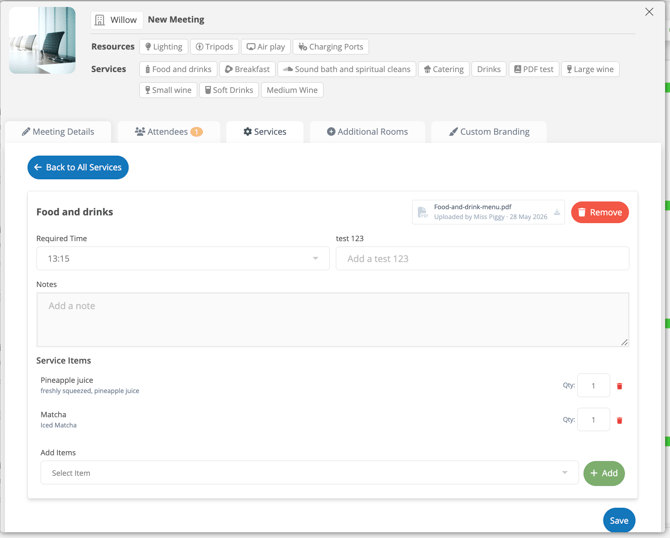
FAQ's
What file types can be uploaded?
Any file type can be uploaded. PDF is strongly recommended for documents such as menus and order forms, as PDFs display correctly on all devices without requiring specialist software.
Can I attach more than one document to a service?
Currently, one document can be attached per service. If you need to share multiple files, consider combining them into a single PDF before uploading.
Can I update or replace the document later?
Yes. Administrators can return to the service settings at any time, remove the existing document, and upload a new version. Any meetings booked after the update will show the latest document.
Do I need to download the document to view it?
This depends on your browser settings. In most cases, clicking the link will open the document in a new browser tab. You can choose to download it from there if needed.
Who can upload documents to services?
Only users with administrator access/correct role permissions for creating services can create or edit services and upload documents. End users can only view and download documents that have already been attached.