
In order to set up Google Calendar integration in Clearooms, you will need to be an Administrator in Clearooms, and have Administrator-level access to your company's Google Cloud Apps (console.developers.google.com) and Search Console (google.com/webmasters/tools).

This integration links to your google room resources, if you have not set these up please do so first (Instructions below)
Google Calendar Setup: Step One: Google Console
Step 1: Set Up in Google Console
-
Navigate to Google Developers Console.
-
Follow the instructions provided in the below video to complete the setup.
Google Admin
Step 2: Google Admin
Follow the steps in the below video, on step 6 paste the below url's as below (including comma's)
Clearooms
-
Open Clearooms and import your file. Steps in below video
Unless on a trail you will need to add Meeting rooms to your subscription before importing or adding rooms to your office plan.
Add Rooms to your floor plan
Unless on a trail you will need to add Meeting rooms to your subscription before importing or adding rooms to your office plan.
-
From Meeting rooms tab in Clearooms click on Manage rooms
-
Your rooms from Google will be listed within a few seconds.
-
Select the appropriate Office from the drop down and click import on the rooms you want in that office
-
Repeat for all offices - rooms.
Add Rooms to your Office Plan
-
Go to Settings, select “Offices,” and then choose “Edit Office Plan.”
-
Scroll down to your floor plan
-
Click in an empty space to create a new icon
-
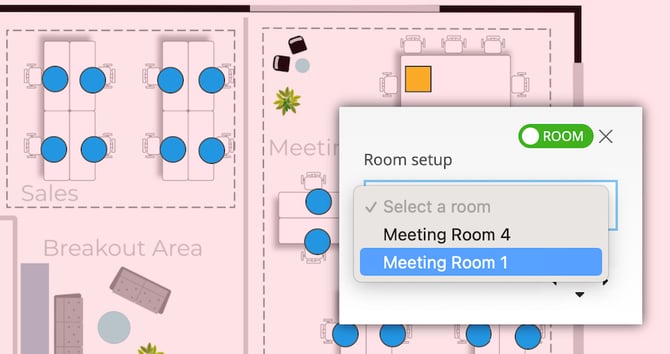
Change the top right hand toggle from "Desks" to "Rooms"
-
Select the room from the drop down list
-
Click "Add to plan"
Room Icons can be moved by clicking on an existing icon and dragging around the screen or by clicking on the icon and using the 4 directional arrows located at the bottom right of the edit screen.
Your Meeting Room icons do not move when you upload a new image so if the plan is a different size or Rooms have changed position, you will need to re-locate the desk icons.
Learn About Creating Google Admin Resources
For a detailed step-by-step guide on creating resources in Google Admin, including buildings and meeting rooms, please see our full guide: How To Create Resources In Google Admin.