
1. Open the Branding page
- Log in to the Clearooms portal and go into your Settings and select the ArrivalsHQ tab.
- In the left-hand menu, under Admin, select Settings and then Branding.
You will see the Set up from your website banner at the top of the Branding page.
The Set up from your website banner

2. Fetch branding from your website
- Select Set up from your website on the banner.
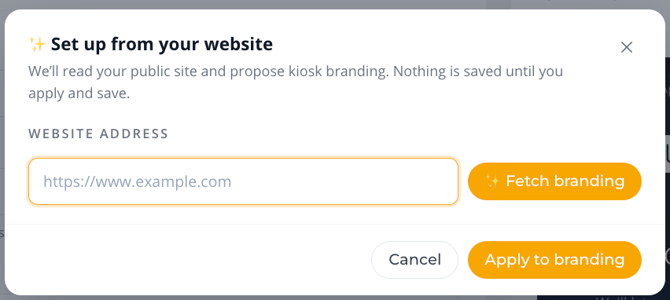
- In Website address, enter your organisation's website, for example https://www.example.com.
- Select Fetch branding.
Enter your website address
ArrivalsHQ reads your site and shows its suggestions. The page it used is shown at the top, for example Based on Meeting Room and Desk Booking Software | Clearooms.
- Display name: your organisation's name, for example Clearooms.
- Accent colour: a brand colour taken from your site, with its HEX code.
- Welcome line: a greeting for the kiosk idle screen, for example Welcome to Clearooms.
- Sub-line: a short line telling visitors what happens next, for example Please sign in below and we'll let your host know you've arrived.
- Logo candidates: images found on your site. Select one to use as your light-background logo, or leave them all unselected.
3. Apply, review and save
- Select Apply to branding. The suggestions fill in the branding form and a Branding proposal applied. Review and save. message appears.
- Check each field in the Brand identity and Theme & accent colour sections, and change anything you want to adjust.
- Check the Kiosk live preview to see how your kiosk will look.
- Select Save changes to keep your branding, or Discard to undo it.
Nothing is saved until you select Save changes. If you select Cancel in the Set up from your website window, nothing is applied.