
Introduction
If you use GSuite within your organisation, setting up single sign-on will allow all of your users to access Clearooms without needing to invite them and for them to remember additional passwords.
This short guide will walk you through how to configure GSuite and Clearooms should you wish to take advantage of this feature.
! When you turn SSO on in the portal this will become the only way to login, should the set up be incorrect or you need to turn it off for any reason user the url: https://portal.clearooms.com/login?sso=0 to login using your username and password
This guide can be downloaded to PDF and printed for ease of use here
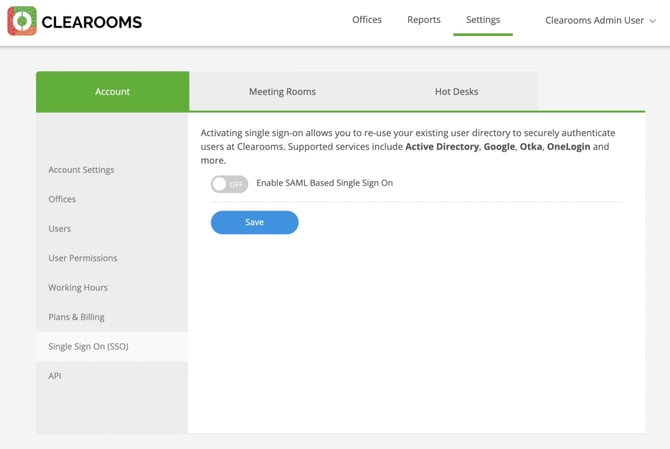
Get your Clearooms SSO Settings
Create the SAML Application in GSuite
- Once logged into the admin portal select Apps.
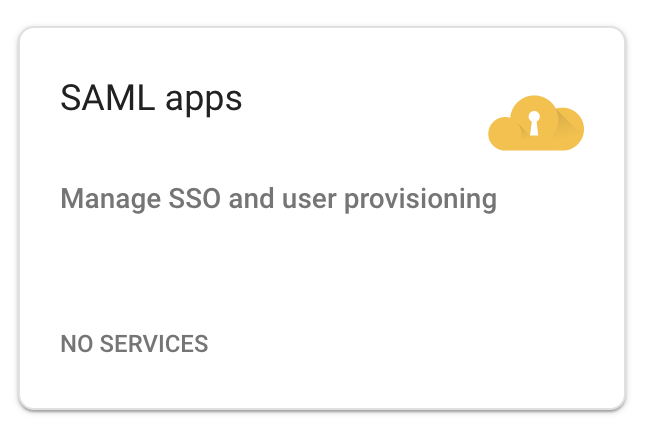
- Next, click SAML apps.
- This next page shows a list of all of your configured SAML Apps. Click the plus icon to add a new SAML app.

Setup my own custom app
- You don't need the information displayed just yet as we can get it all further in the process, so just click Next.
- Give your SAML App a name, description and logo that your users will see. The Clearooms icon is available here if you want to use our logo.
- Now from the information you gathered in Step 1, enter it into the following fields:
| GSuite Field | Clearooms Field |
| ACS Url | Reply URL |
| Entity ID | Metadata URL |
| Start URL | Login Url |

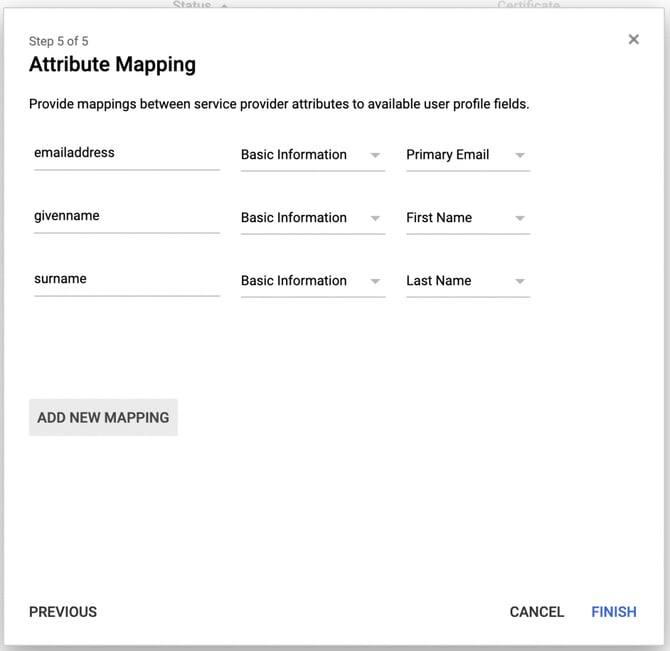
Attribute Mapping
| Mapping Name | Field Group | Field |
| emailaddress | Basic Information | Primary Email |
| givenname | Basic Information | First Name |
| surname | Basic Information | Last Name |
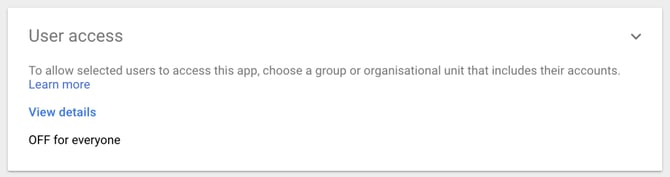
Give your users access
Enter the GSuite details in Clearooms
We need to copy and paste the SSO Url, Entity ID and Certificate into Clearooms.Image 2 & 3)
- Copy the SSO Url field from GSuite into the SAML 2.0 Endpoint field in Clearooms
- Copy the Entity ID field from GSuite into the Identity Provider Issuer field in Clearooms
- Copy the Certificate field from GSuite into the Public Certificate field in Clearooms
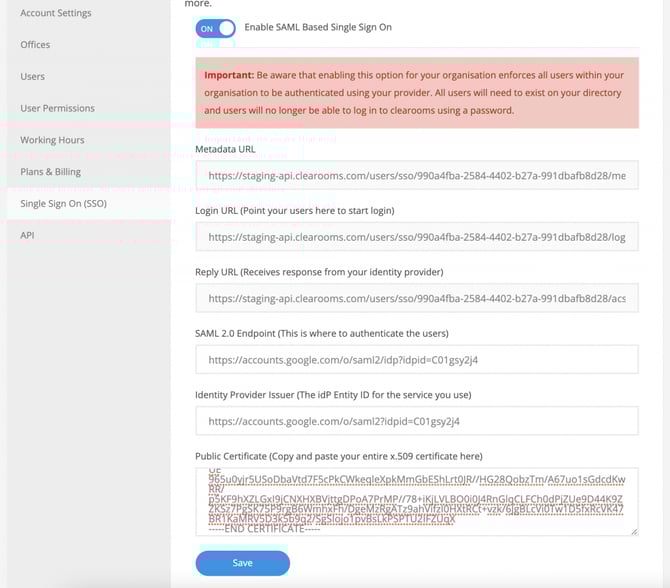
Check your settings
It is recommended that you open a different browser, a new private browsing window or test using a different workstation to check the implementation as if you have misconfigured the system you may not be able to log back in.
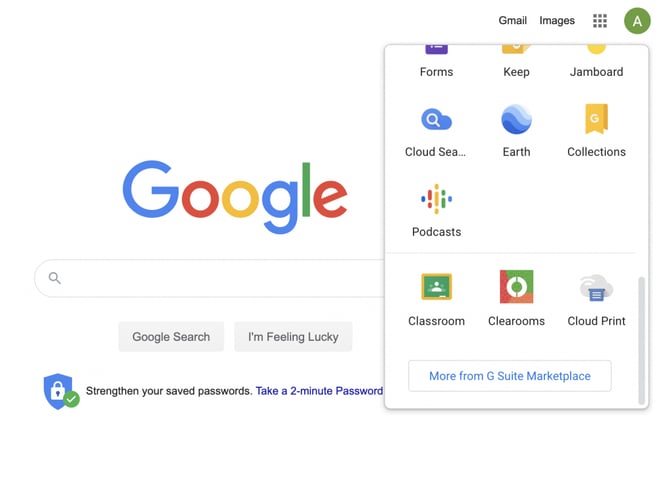
Once on a different session, head to Google and you should see Clearooms in your Google Apps list. Clicking this will automatically log you in (creating you an account if you have don't have one). Once users have accounts within Clearooms, if they try to log in directly in the portal they will be redirected to GSuite to sign in.
Get Extra Support
If you having any trouble connecting your GSuite account, please get in touch with us and we can assist in the process.