
How much time does your team lose every week chasing diaries, sending "does Tuesday work?" messages, and rescheduling meetings that clashed with a holiday no one flagged?
Smart Scheduler ends all of that. It lives inside Create Meeting on the Meeting Rooms page, and the moment you add your attendees you see a colour-coded grid of their availability, green for free, red for busy, yellow for tentative, grey for unknown. Pick a slot when everyone is in the green and the meeting time updates with a single click.
It plugs straight into your Google or Microsoft calendar integration to pull live availability, so you are never working off stale data. Toggle the built-in settings to ignore tentative bookings, prioritise the organiser's calendar, or steer clear of lunch hours, and the recommendations adjust on the fly.
Smart Booking for Meeting Rooms is available from the Meeting Rooms page in Clearooms.
How to access Smart Scheduler
- Go to the Meeting Rooms page.
- Click Create Meeting.
- Open the Smart Scheduler dropdown.
- Add your attendees.
- Smart Scheduler will then show their availability so you can choose the best meeting time.
How Smart Scheduler works
Once attendees have been added, Smart Scheduler displays their calendar availability and helps you identify a time when everyone is free. Guests can also be added when creating the meeting.
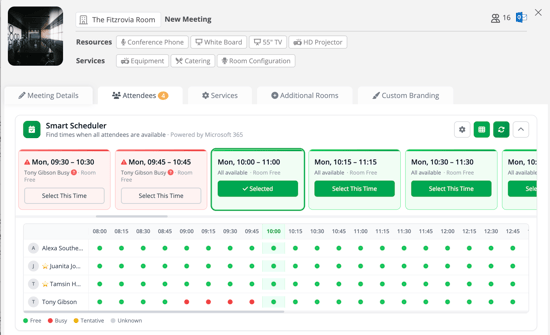
Availability is shown using colour indicators:
- Green = Free
- Red = Busy
- Yellow = Tentative
- Grey = Unknown
If an attendee is busy, Smart Scheduler will show their busy times so you can avoid conflicts.
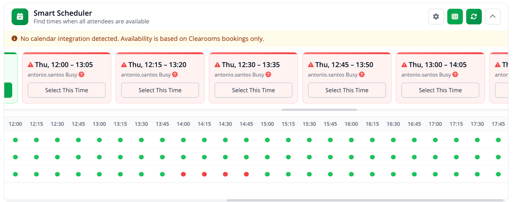
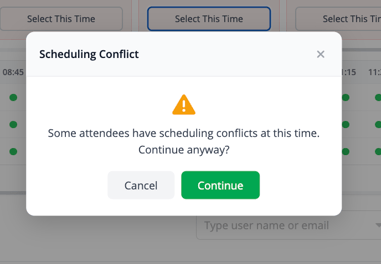
When you select a new time in Smart Scheduler, the meeting will automatically update to the selected time.
If your account has a Google or Microsoft calendar integration set up, Smart Scheduler will also check the connected calendar for availability conflicts.
Smart Scheduler options
Smart Scheduler includes a Settings box with the following options:
-
Ignore tentative
Excludes tentative events when looking for available time slots. -
Prioritise organiser
Gives priority to the organiser’s availability when suggesting times. -
Avoid lunch hours
Helps avoid scheduling meetings during lunch periods
The Avoid lunch hours option uses a fixed lunch period of 12:00am – 1:00pm. The lunch hours setting cannot currently be changed to other times.
There is also an option to:
-
Minimise attendee calendar availability
This reduces the amount of attendee calendar detail shown on screen. -
Refresh availability
Refreshes the calendar data to show the most up-to-date attendee availability. -
Expand or collapse the Smart Scheduler dropdown
Lets users show or hide the scheduler as needed while creating the meeting.
Smart Scheduler does not reflect whether a user already has a desk booking.