
This short guide will walk you through how to configure Okta and Clearooms for Single sign-on

When you turn SSO on in the portal this will become the only way to login, should the set up be incorrect or you need to turn it off for any reason user the url: https://portal.clearooms.com/login?sso=0 to login using your username and password
Get your Clearooms SSO Settings
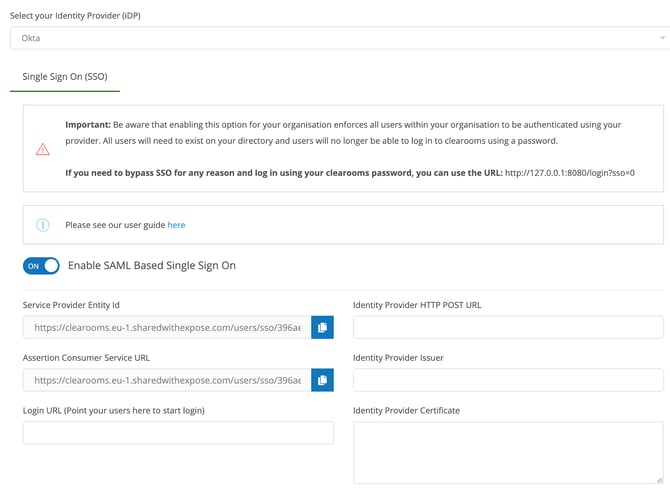
To set up single sign-on, you will need to let Okta know your unique Clearooms Service Provider Entity Id and Assertion Consumer Service URL.
To get this, in Clearooms head to Settings > Single Sign-On, select Okta as your Identity Provider (iDP) and toggle the Enable SAML Based Single Sign-On switch. This won't turn it on immediately for users at this stage but it will show you the required information you will need.
Create the Application in Okta
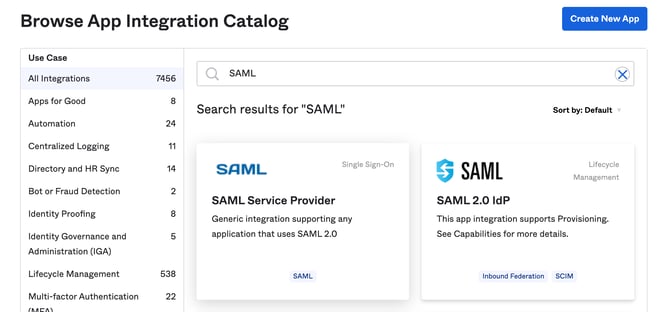
In Okta, under Applications - select Browse App Catalog, search for SAML and select SAML Service Provider. This is a Generic integration supporting any application that uses SAML 2.0.
Press the Add Integration button to add this application.
Give the Application label a name such as Clearooms then press Next
Configure Attributes
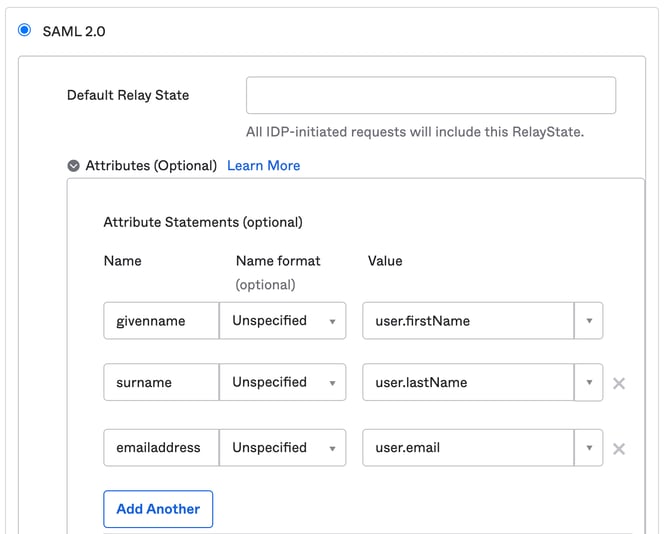
Under the SAML 2.0 settings, expand attributes and enter the following attributes:
| Name | Value |
| givenname | user.firstName |
| surname | user.lastName |
| emailaddress | user.email |
Provide the Clearooms settings to Okta
Scroll down to Advanced Sign-on Settings and populate the following fields, which you can get from the Clearooms SSO setup page:
-
Assertion Consumer Service URL
-
Service Provider Entity Id
Under Credentials, set the Application username format to Email
Press Done
Provide Okta settings to Clearooms
In the tabs for the application, select General
Scroll down to App Embed Link and copy the Embed Link into the Login URL field on Clearooms.
Next, in the tabs for the application, select Sign On
Scroll down until you see SAML Setup, then click the View SAML setup instructions button
A new page will open, which will give you the following, which needs to be entered into the Clearooms SSO setup page:
-
Identity Provider Issuer
-
Identity Provider HTTP POST URL
-
Identity Provider Certificate (open in Notepad to copy and paste this in)
Finish
In Okta, under Assignments, assign the App to any users or groups you wish to be able to use the App.
In Clearooms, select Save to enable your integration.